---
title: Exam Experience
description: What to expect when taking a Microsoft Certification Exam
---
:::tip
Get familiar with the exam environment in this live demo. If you have any feedback or suggestions, you can utilize the built in feedback option so Microsoft can receive it. [https://aka.ms/examdemo](https://aka.ms/examdemo)
:::
:::note
**The tests themselves are divided into multiple sections**:
* General questions
* Case Studies
* Labs
**You can't skip between them. Once you complete a section, you are unable to return to it.**
:::
Before you get to the actual exam questions, Microsoft will first ask you about your experience. This is not graded and it doesn't matter what you answer there.
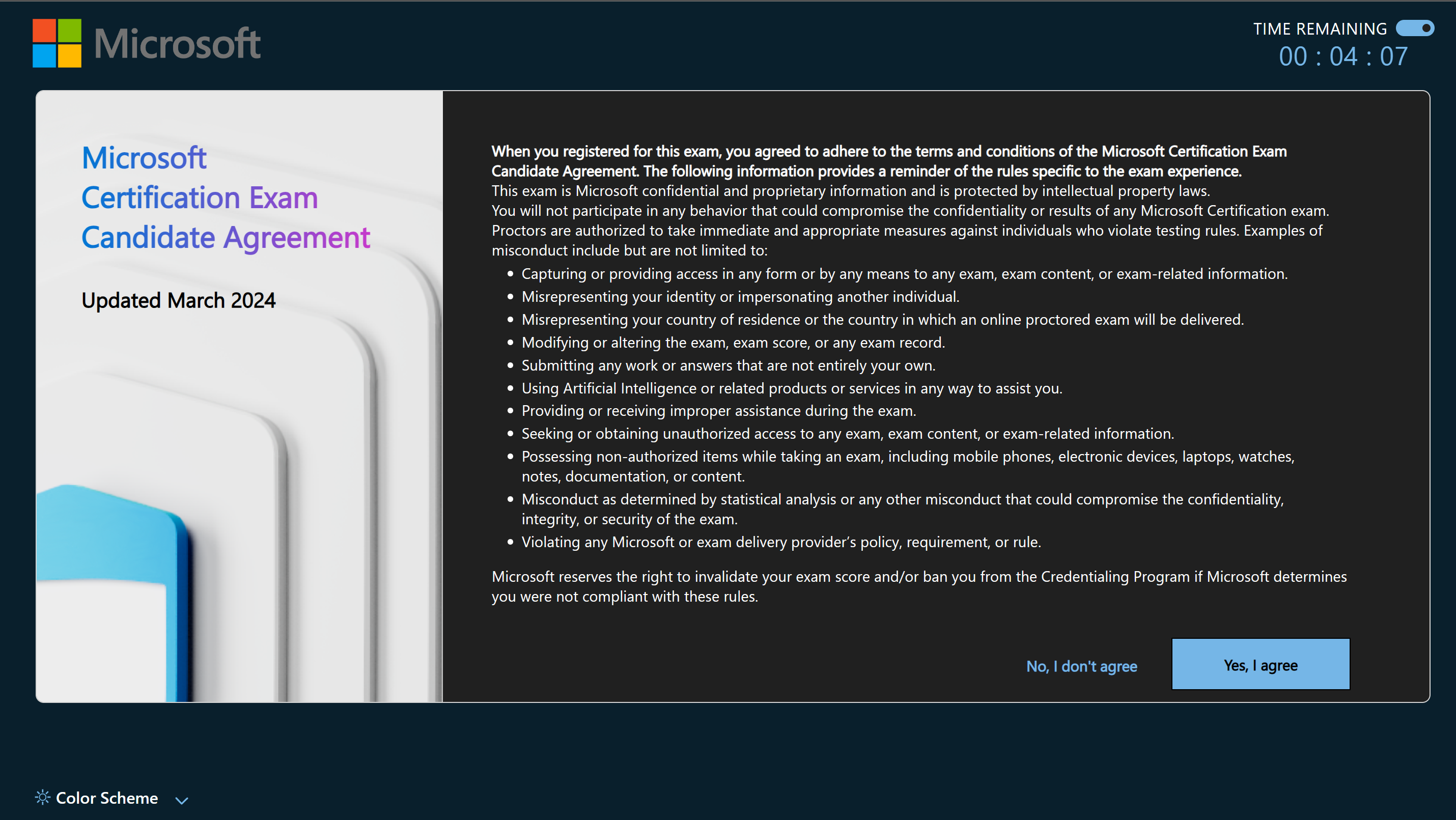
Next you will be shown the Microsoft Certification Exam Candidate Agreement. You will need to accept it before you can see the real exam.
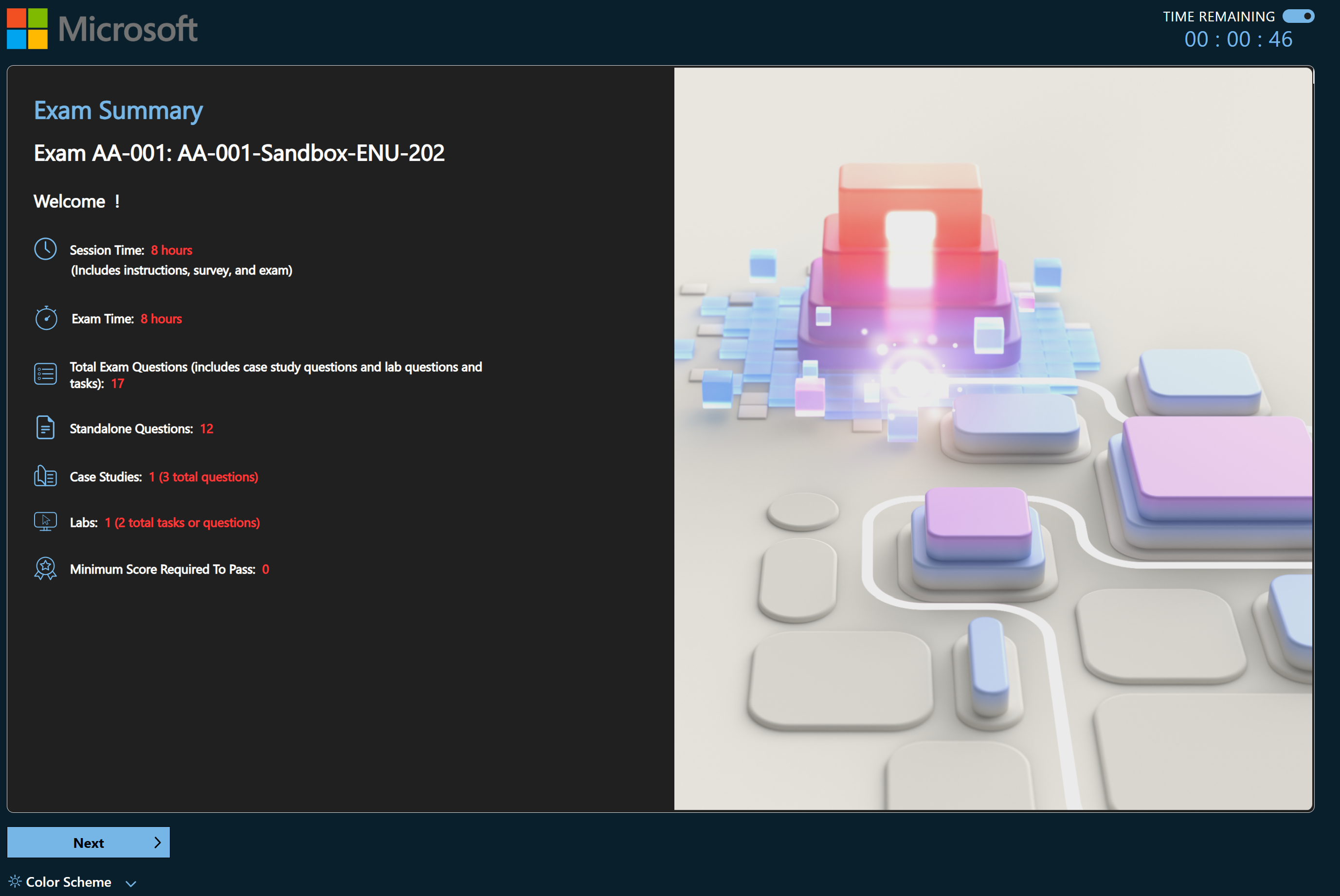
 After agreeing that you will be shown information about the exam itself. Be sure to read the total number of questions because sometimes you don't get a lab or case study at the beginning which means that you need to save time at the end for them. Information about the exam structure can be also accessed during the exam.
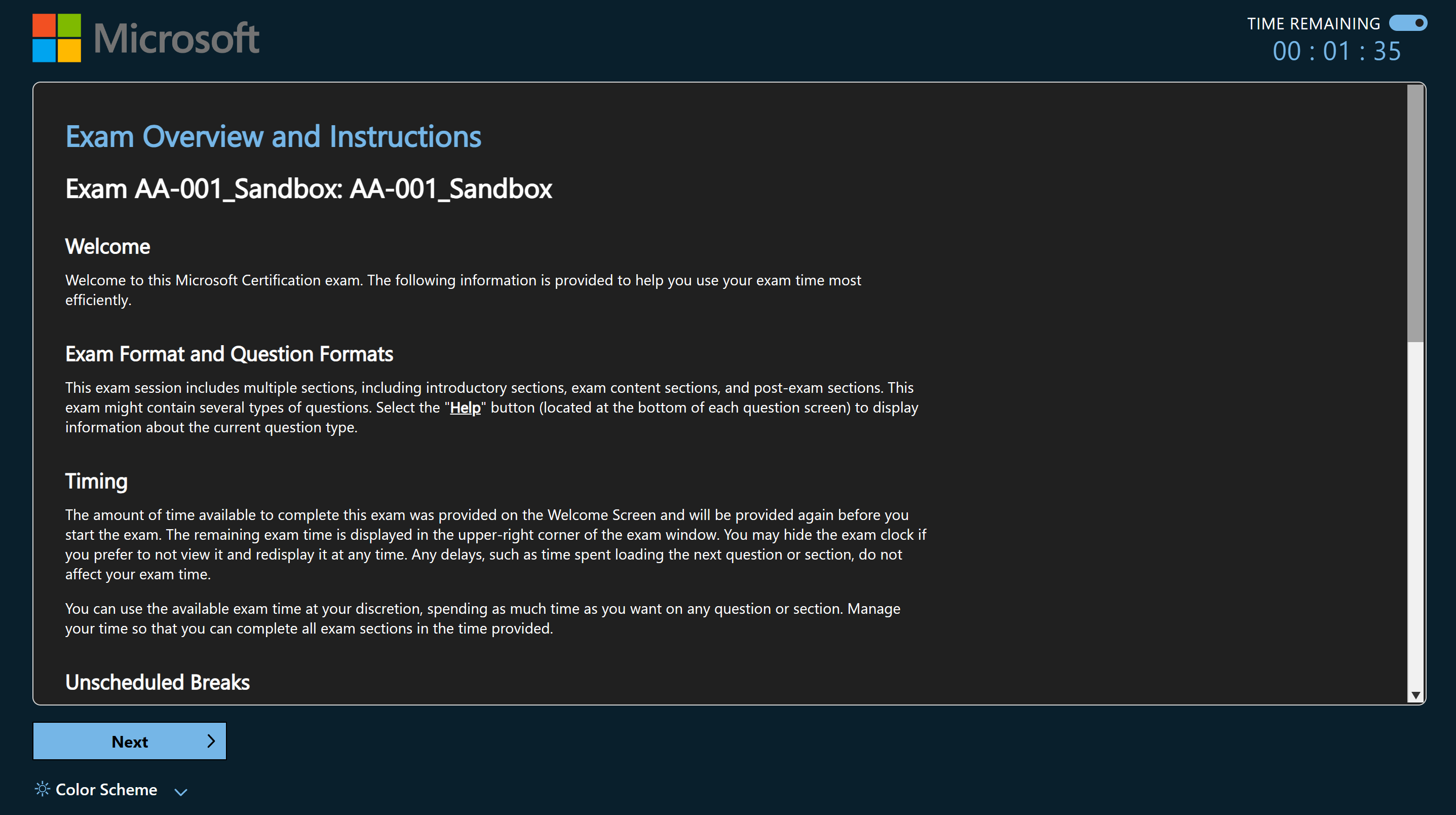
 Next page will explain how the exam works, be sure to read it.
 After reading all the information, there will be another screen with summary and the option to start the exam.
## In the exam
After reading all the information, there will be another screen with summary and the option to start the exam.
## In the exam
 ### Timer
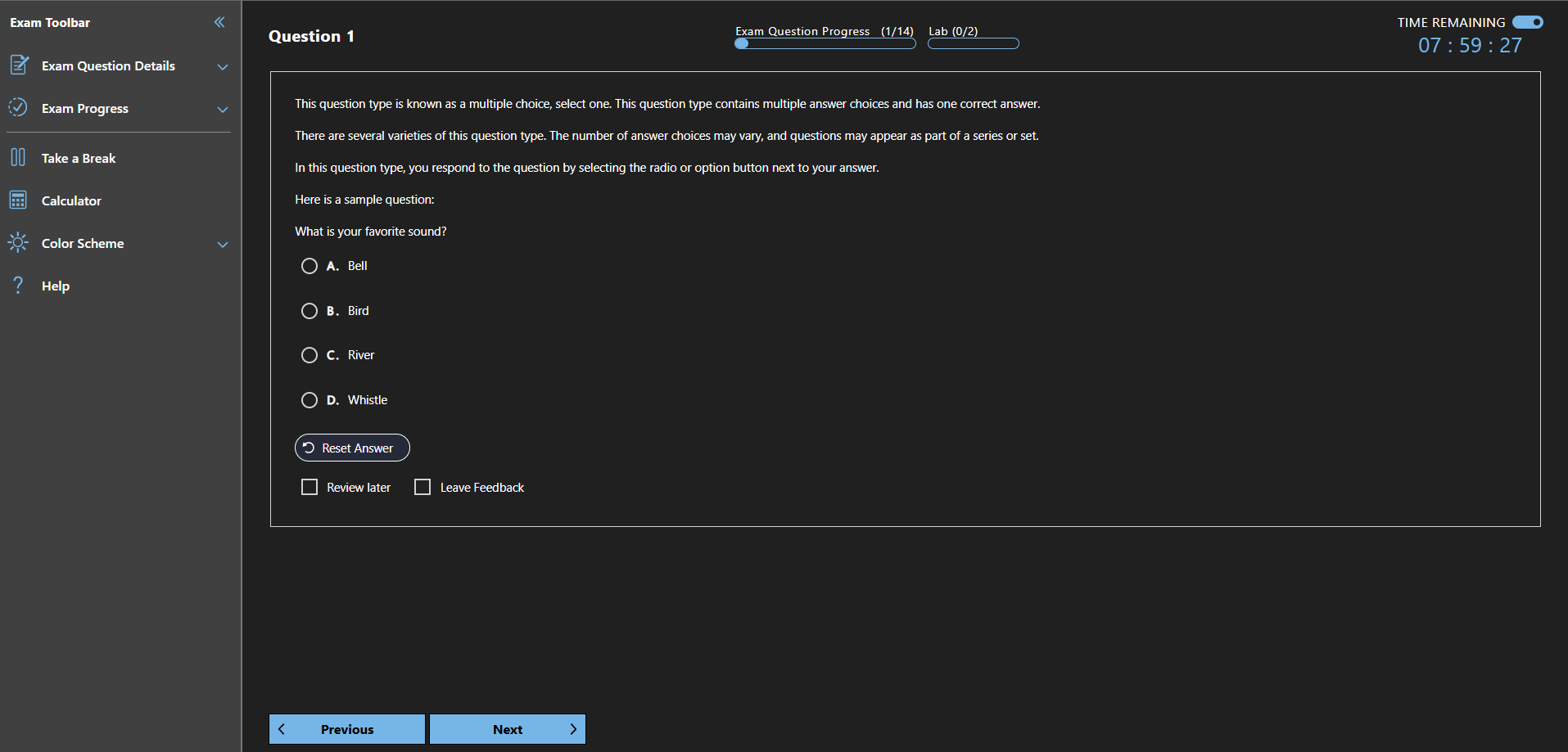
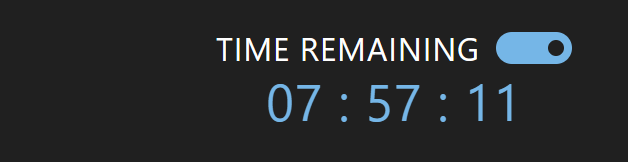
There is a timer in the top right corner. You have the option to turn the timer off in case it is stressing you out. **Turning the timer off does not stop it, the timer will still continue after turning it off.**
### Timer
There is a timer in the top right corner. You have the option to turn the timer off in case it is stressing you out. **Turning the timer off does not stop it, the timer will still continue after turning it off.**
 ### Exam Progress Bar
In the top middle part of the exam, there is the Progress bar. The bar tells you how many questions are in each section. Once you finish a section, you cannot return to it.
### Exam Progress Bar
In the top middle part of the exam, there is the Progress bar. The bar tells you how many questions are in each section. Once you finish a section, you cannot return to it.
 ### Exam Toolbar
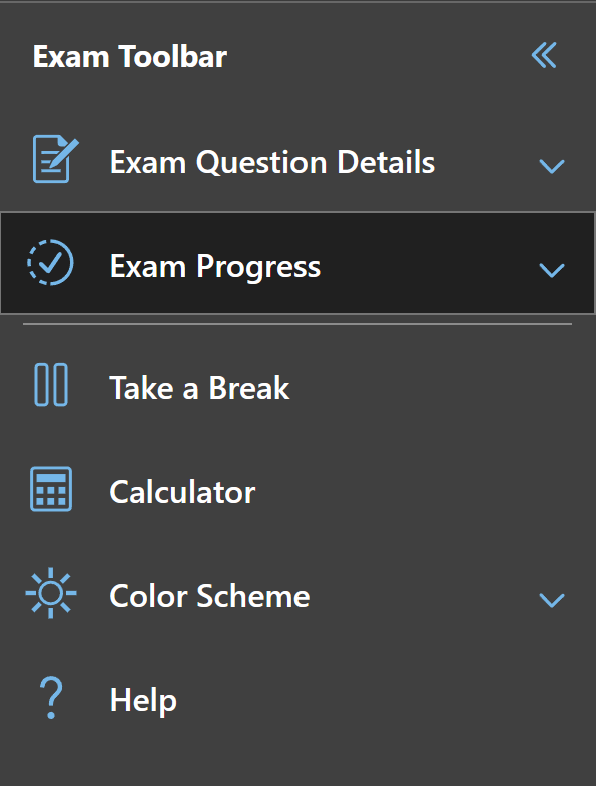
In the top left you can access the exam toolbar where there are many tools:
### Exam Toolbar
In the top left you can access the exam toolbar where there are many tools:
 ### Exam Question Details
Here you can access all the questions in your current sections and filter them.
### Exam Question Details
Here you can access all the questions in your current sections and filter them.
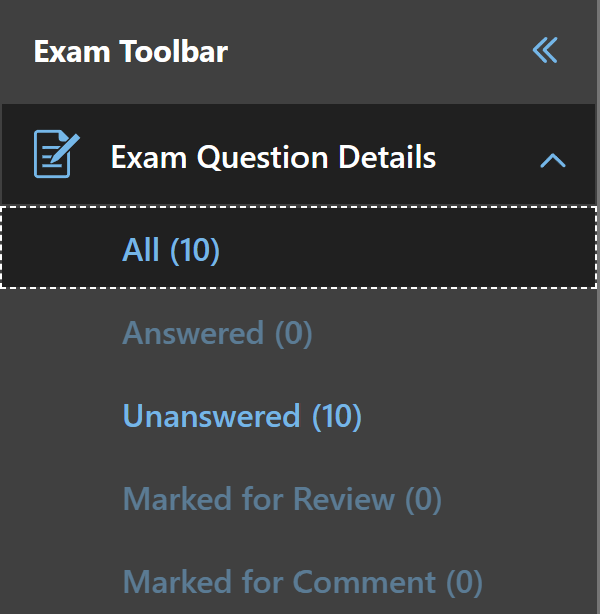 In case you are done with filtering and want to return to all questions, use the **Exit Review Mode** Button on the bottom of the screen next to navigational buttons.
 ### Exam Progress
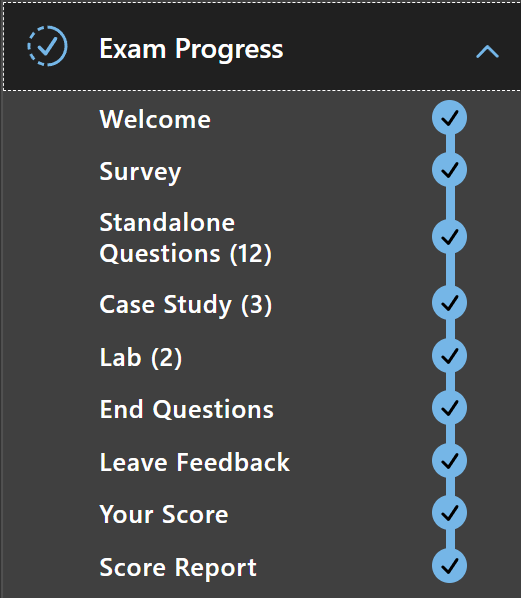
Here you can see the whole structure of the exam, where you currently are and how much is remaining. It will also show you all the questions that are still in front of you, outside the current section so now there is no need to remember it from the Welcome screen but you have it in the exam.
### Exam Progress
Here you can see the whole structure of the exam, where you currently are and how much is remaining. It will also show you all the questions that are still in front of you, outside the current section so now there is no need to remember it from the Welcome screen but you have it in the exam.
 ### [Microsoft Learn during your exam](https://learn.microsoft.com/credentials/support/exam-duration-exam-experience?WT.mc_id=studentamb_165290#accessing-microsoft-learn-during-your-certification-exam)
:::tip
Control + F now works inside the MS Learn Microsoft environment making page navigation much easier.
:::
:::caution
Statistically, people who use Microsoft Learn incorrectly are failing more exams than people who don't use it at all during the exam.
:::
As of September 2023, Role-based/Non-fundamental Microsoft Exams now contain the option to access Microsoft Learn during your exam to look up information and if you haven't used it in the exam yet, I highly recommend reading this so you know how to correctly use it. The most important things to know is that you are still limited by the same time during your exam is it in nearly impossible to lookup all questions you get and it is Microsoft Learn, not Google so you need to know what you are looking for to find it, if you don't you are in for a bad time.
How to use Microsoft Learn effectively?
* First of all if you feel like you need the documentation to verify/find the answer, mark the question for review and return to it when you finish all the other questions and have time left (unless it is one of the questions asking about roles/cmdlets/powershell modules where looking up the information is quick)
* Learn how to navigate Microsoft Learn. For example I didn't have an issue with it because I use Microsoft Learn daily at my job but that isn't the case for everyone and many people have said that they couldn't find what to look for. What is important here is to know what the page you are looking for is called or what does it contain exactly. So if you don't learn the SKUs for App Service Plans, learn how to find the page inside Microsoft Learn before you take the actual exam.
* Don't think this is your Get out of Jail Free card. While having access to Microsoft Learn makes the exams easier, it isn't a free win. On average you have 2-3 minutes per questions (including lab tasks and case studies) and you won't have the time to look up what is a Virtual Machine and how to turn it on. So while you only need to know the concepts and how the products work now, it doesn't mean you can walk into the center with zero knowledge and pass it.
* On Microsoft Learn you don't get access to Q\&A, Practice Assessments and your profile.
:::tip
* **Use quotation marks for exact phrases**: Enclose specific terms, product names, functions, or programming methods in quotation marks ("") to search for exact matches. For example, search for "Azure Functions" instead of Azure Functions.
* **Connect related concepts with the plus sign**: When searching for two interconnected topics, such as an RBAC role and a product, use the plus sign (+) to link them. For instance, search for Contributor + Azure Storage.
* **Combine quotation marks and plus signs**: You can use both techniques together for more precise searches. For example: "Azure Functions" + "HTTP trigger".
* **Utilize filters and tabs**: After performing a search, use the available filters and tabs on the results page to narrow down your findings and focus on relevant content.
:::
### Take a Break
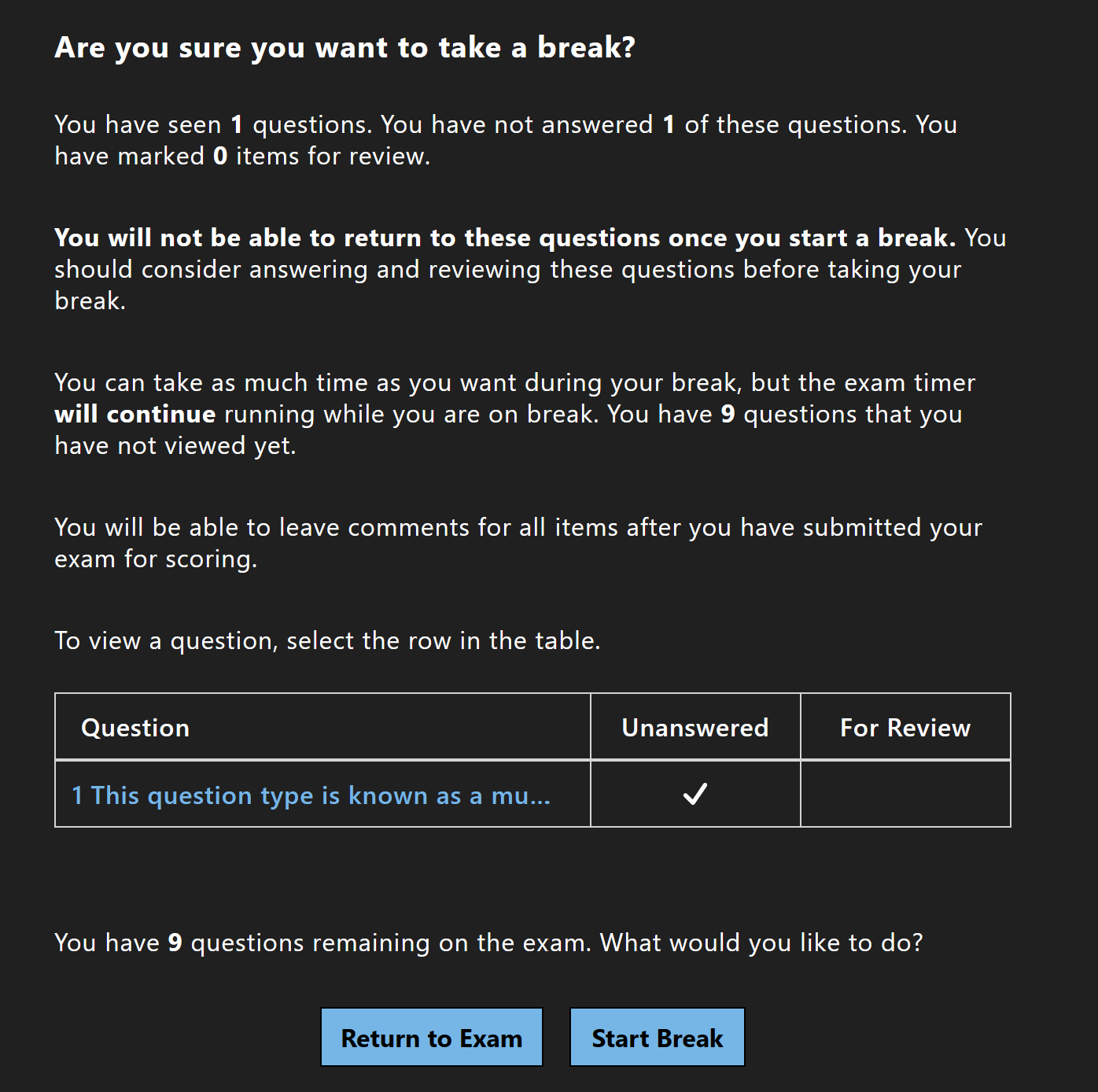
You are allowed to take unscheduled breaks during the exam. Keep in mind that once you initiate a break, the timer will go on as usual and you won't have access to any question you have seen before after you return, **including the one you are currently looking at**. The interface will warn you of any incomplete question beforehand.
### [Microsoft Learn during your exam](https://learn.microsoft.com/credentials/support/exam-duration-exam-experience?WT.mc_id=studentamb_165290#accessing-microsoft-learn-during-your-certification-exam)
:::tip
Control + F now works inside the MS Learn Microsoft environment making page navigation much easier.
:::
:::caution
Statistically, people who use Microsoft Learn incorrectly are failing more exams than people who don't use it at all during the exam.
:::
As of September 2023, Role-based/Non-fundamental Microsoft Exams now contain the option to access Microsoft Learn during your exam to look up information and if you haven't used it in the exam yet, I highly recommend reading this so you know how to correctly use it. The most important things to know is that you are still limited by the same time during your exam is it in nearly impossible to lookup all questions you get and it is Microsoft Learn, not Google so you need to know what you are looking for to find it, if you don't you are in for a bad time.
How to use Microsoft Learn effectively?
* First of all if you feel like you need the documentation to verify/find the answer, mark the question for review and return to it when you finish all the other questions and have time left (unless it is one of the questions asking about roles/cmdlets/powershell modules where looking up the information is quick)
* Learn how to navigate Microsoft Learn. For example I didn't have an issue with it because I use Microsoft Learn daily at my job but that isn't the case for everyone and many people have said that they couldn't find what to look for. What is important here is to know what the page you are looking for is called or what does it contain exactly. So if you don't learn the SKUs for App Service Plans, learn how to find the page inside Microsoft Learn before you take the actual exam.
* Don't think this is your Get out of Jail Free card. While having access to Microsoft Learn makes the exams easier, it isn't a free win. On average you have 2-3 minutes per questions (including lab tasks and case studies) and you won't have the time to look up what is a Virtual Machine and how to turn it on. So while you only need to know the concepts and how the products work now, it doesn't mean you can walk into the center with zero knowledge and pass it.
* On Microsoft Learn you don't get access to Q\&A, Practice Assessments and your profile.
:::tip
* **Use quotation marks for exact phrases**: Enclose specific terms, product names, functions, or programming methods in quotation marks ("") to search for exact matches. For example, search for "Azure Functions" instead of Azure Functions.
* **Connect related concepts with the plus sign**: When searching for two interconnected topics, such as an RBAC role and a product, use the plus sign (+) to link them. For instance, search for Contributor + Azure Storage.
* **Combine quotation marks and plus signs**: You can use both techniques together for more precise searches. For example: "Azure Functions" + "HTTP trigger".
* **Utilize filters and tabs**: After performing a search, use the available filters and tabs on the results page to narrow down your findings and focus on relevant content.
:::
### Take a Break
You are allowed to take unscheduled breaks during the exam. Keep in mind that once you initiate a break, the timer will go on as usual and you won't have access to any question you have seen before after you return, **including the one you are currently looking at**. The interface will warn you of any incomplete question beforehand.
 ### Calculator
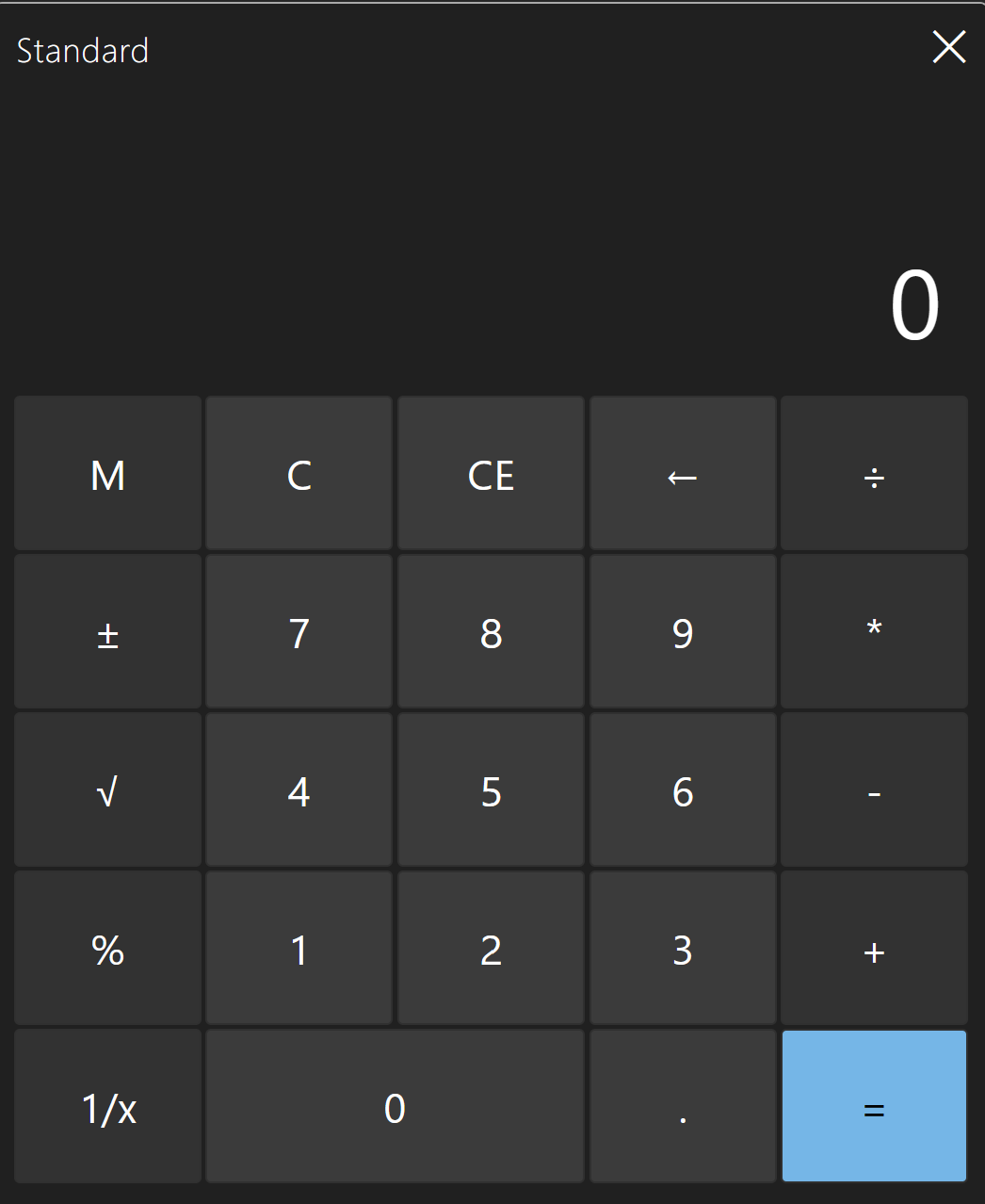
There might be some basic math in the exam, like calculating SLAs, bandwidth or subnetting. You can access calculator for these questions, it is just a normal calculator, nothing special about it.
### Calculator
There might be some basic math in the exam, like calculating SLAs, bandwidth or subnetting. You can access calculator for these questions, it is just a normal calculator, nothing special about it.
 ### Color Scheme
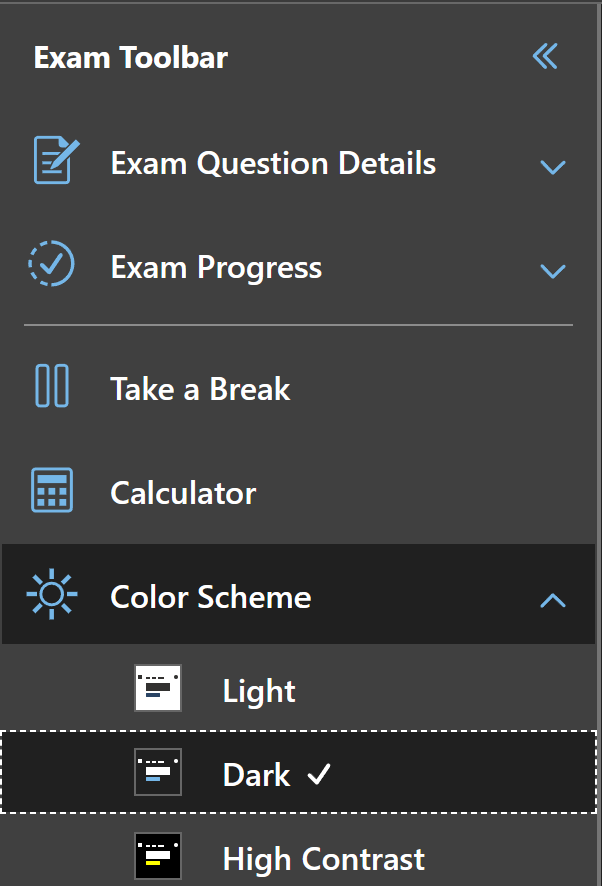
Long awaited feature, now you can switch your exam to dark mode. There is also a High Contrast option for those who prefer it.
### Color Scheme
Long awaited feature, now you can switch your exam to dark mode. There is also a High Contrast option for those who prefer it.
 ### Help Button
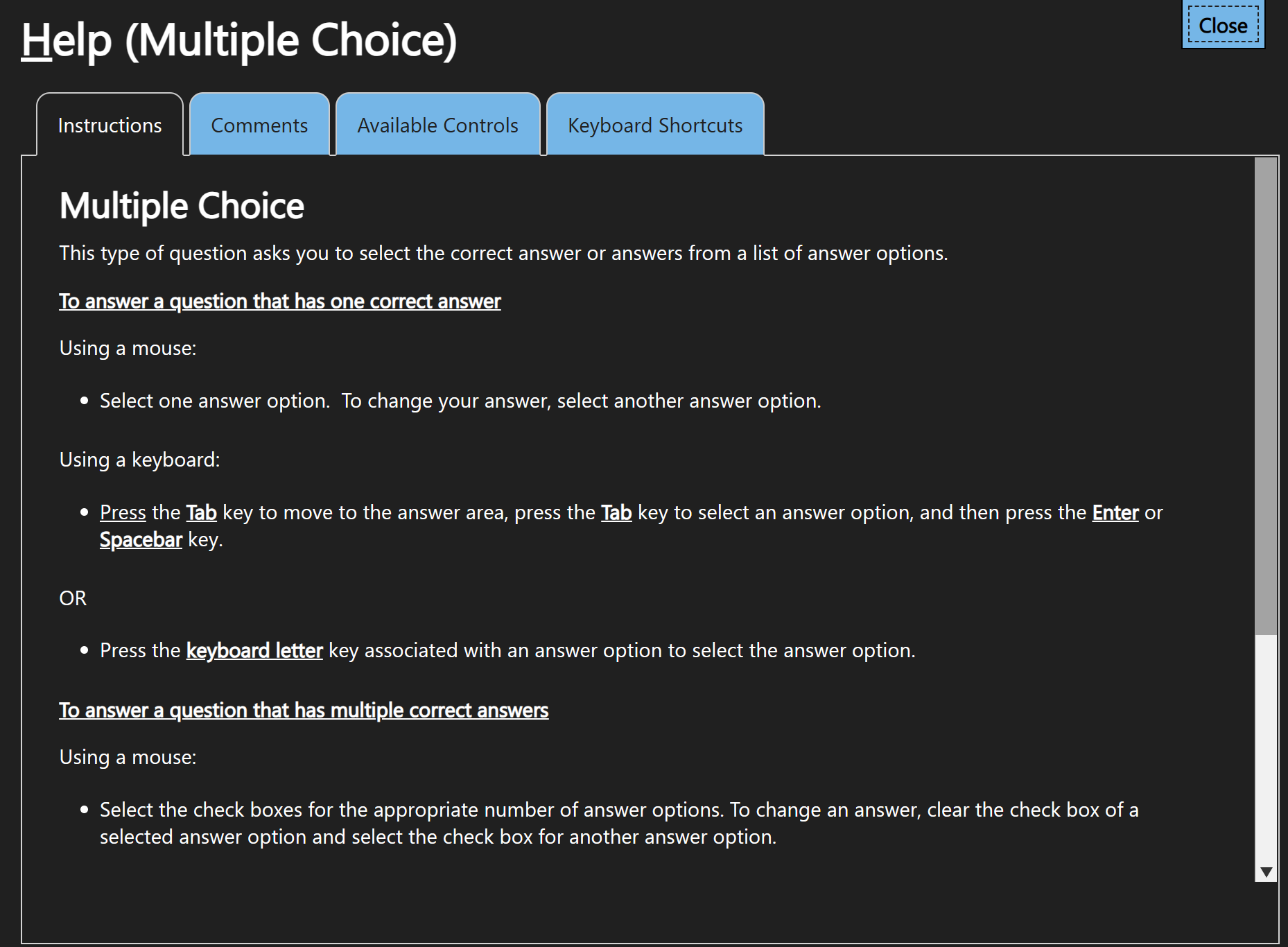
Here you can find all the technical information about the interface, the exam format and even some shortcuts. This doesn't contain any information that will actually help you answer the question.
### Help Button
Here you can find all the technical information about the interface, the exam format and even some shortcuts. This doesn't contain any information that will actually help you answer the question.
 ### Exam Question Itself
In the center of the screen you can see the Exam Question Itself. The different question types are explained below. There are 2 important buttons there.
* **Review Later** allows you to highlight the question and access it easily from the review screen. So in case you are not sure about your answer, mark it for review and return to it when you have extra time.
* **Leave Feedback** allows you to mark the question for feedback after you finish the exam. So in case the question was wrong, had mistakes etc. you can provide feedback about it so the certification team can improve it. **The Leave Feedback button in the Exam Demo is live and the team is reading your feedbacks so be sure to leave any if you have any ideas.**
## Answering Exam questions
:::note
**There are 3 basic requirements that are always present in questions and required**:
* **Solution must be as cheap as possible**
* **Administrative roles must be of the least privilege**
* **Must be the simplest to implement**
So if you feel like there are 2 possible answers, try to find one that also follows these requirements.
:::
## Exam question types that appear in all exams:
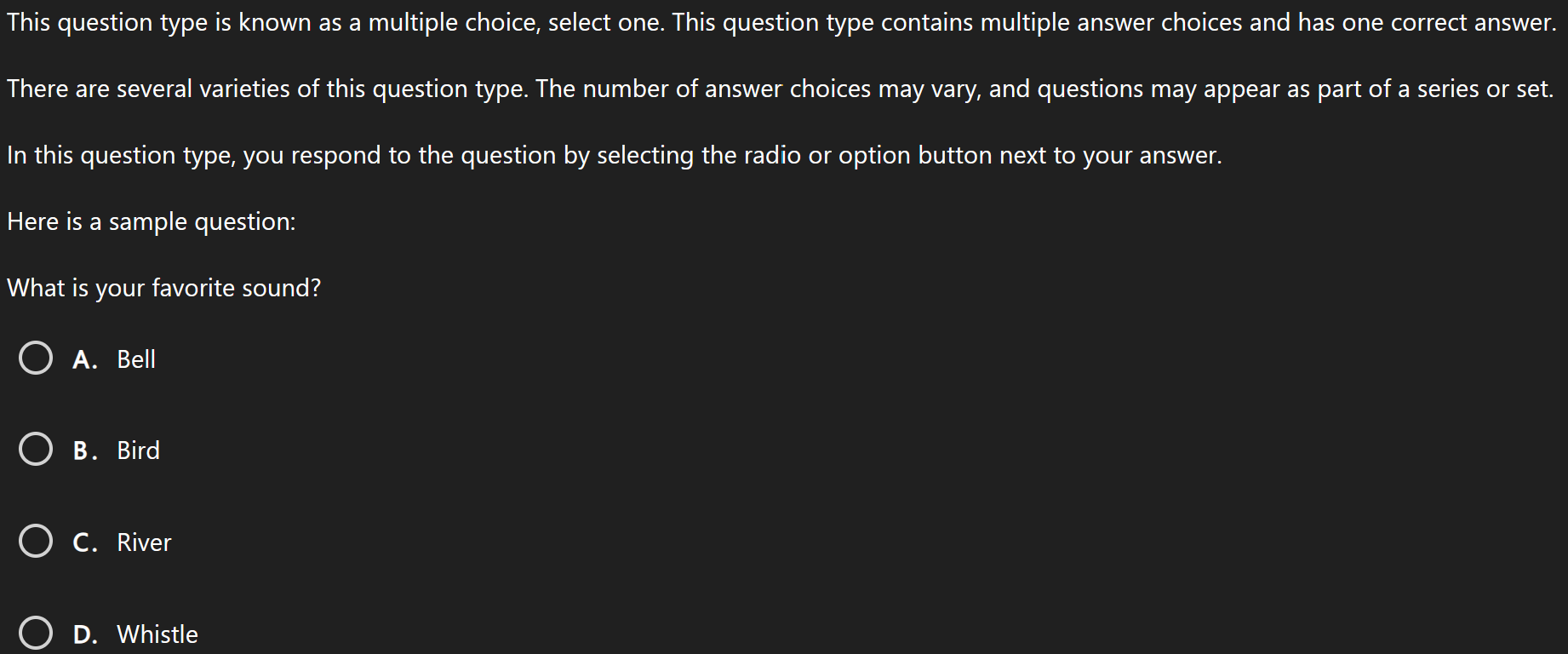
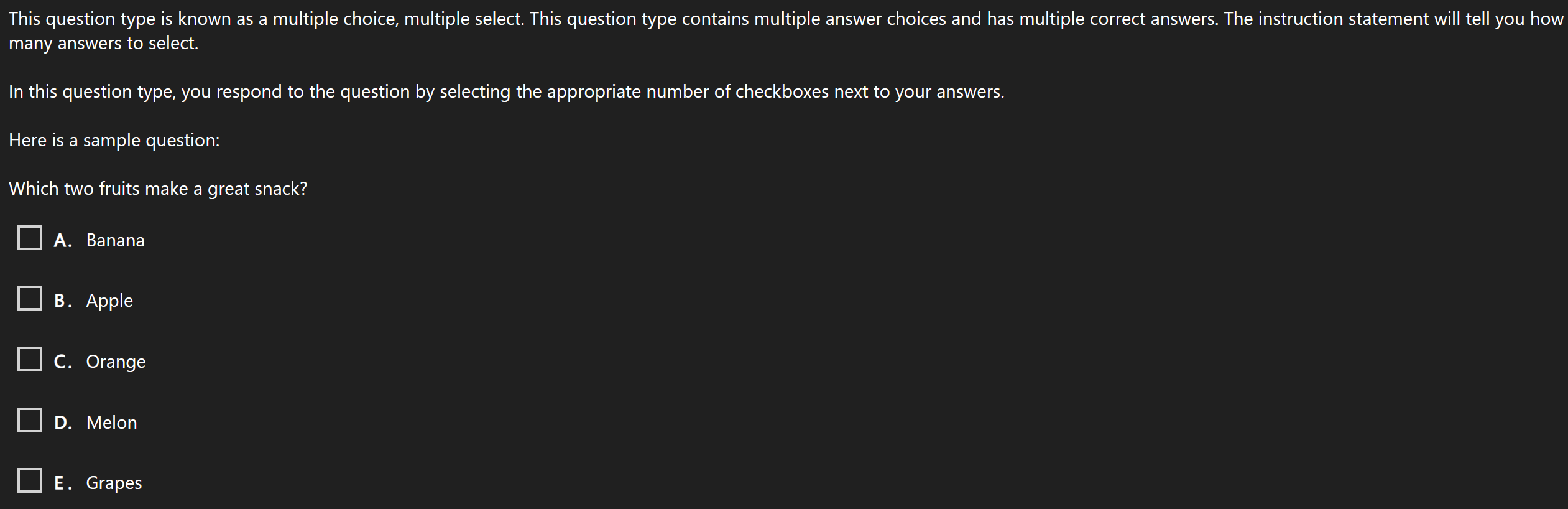
### [Active Screen](https://learn.microsoft.com/credentials/support/exam-duration-exam-experience?WT.mc_id=studentamb_165290#active-screen-044)/[Best answer](https://learn.microsoft.com/credentials/support/exam-duration-exam-experience?WT.mc_id=studentamb_165290#best-answer-020)/[Multiple Choice](https://learn.microsoft.com/credentials/support/exam-duration-exam-experience?WT.mc_id=studentamb_165290#multiple-choice-037)
I grouped these together because the strategy is the same. Choose the best answer.
:::tip
You can usually discard 2 answers because you either haven't heard of it or you know it is obviously wrong. So, you are left with 50/50 choice. If you feel like both are correct, think of the more elegant solution. Abide by the 3 rules I mentioned in bold earlier.
:::
### Exam Question Itself
In the center of the screen you can see the Exam Question Itself. The different question types are explained below. There are 2 important buttons there.
* **Review Later** allows you to highlight the question and access it easily from the review screen. So in case you are not sure about your answer, mark it for review and return to it when you have extra time.
* **Leave Feedback** allows you to mark the question for feedback after you finish the exam. So in case the question was wrong, had mistakes etc. you can provide feedback about it so the certification team can improve it. **The Leave Feedback button in the Exam Demo is live and the team is reading your feedbacks so be sure to leave any if you have any ideas.**
## Answering Exam questions
:::note
**There are 3 basic requirements that are always present in questions and required**:
* **Solution must be as cheap as possible**
* **Administrative roles must be of the least privilege**
* **Must be the simplest to implement**
So if you feel like there are 2 possible answers, try to find one that also follows these requirements.
:::
## Exam question types that appear in all exams:
### [Active Screen](https://learn.microsoft.com/credentials/support/exam-duration-exam-experience?WT.mc_id=studentamb_165290#active-screen-044)/[Best answer](https://learn.microsoft.com/credentials/support/exam-duration-exam-experience?WT.mc_id=studentamb_165290#best-answer-020)/[Multiple Choice](https://learn.microsoft.com/credentials/support/exam-duration-exam-experience?WT.mc_id=studentamb_165290#multiple-choice-037)
I grouped these together because the strategy is the same. Choose the best answer.
:::tip
You can usually discard 2 answers because you either haven't heard of it or you know it is obviously wrong. So, you are left with 50/50 choice. If you feel like both are correct, think of the more elegant solution. Abide by the 3 rules I mentioned in bold earlier.
:::
 ### [Hot Area/Active Screen](https://learn.microsoft.com/credentials/support/exam-duration-exam-experience?WT.mc_id=studentamb_165290#hot-area-017)
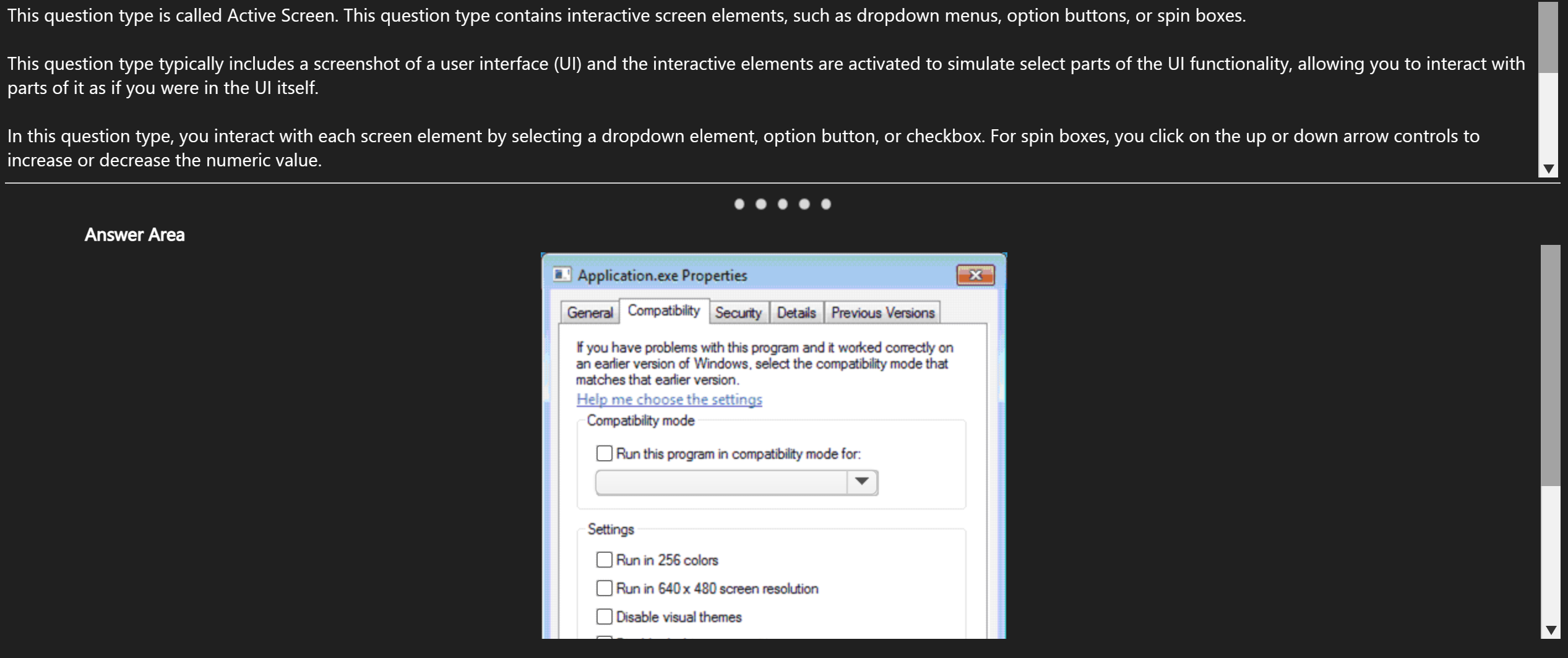
It can be screenshot of basically any menu or portal that is related to the exam. Entra ID Connect configuration, Azure Portal, creating Virtual Machines for example. Your task will be to answer the question by toggling option/s in the screenshot.
:::tip
It is really useful to know the menu you are interacting with and not going in blind.
:::
### [Hot Area/Active Screen](https://learn.microsoft.com/credentials/support/exam-duration-exam-experience?WT.mc_id=studentamb_165290#hot-area-017)
It can be screenshot of basically any menu or portal that is related to the exam. Entra ID Connect configuration, Azure Portal, creating Virtual Machines for example. Your task will be to answer the question by toggling option/s in the screenshot.
:::tip
It is really useful to know the menu you are interacting with and not going in blind.
:::
 ### [Drag and Drop](https://learn.microsoft.com/credentials/support/exam-duration-exam-experience?WT.mc_id=studentamb_165290#drag-and-drop-037)
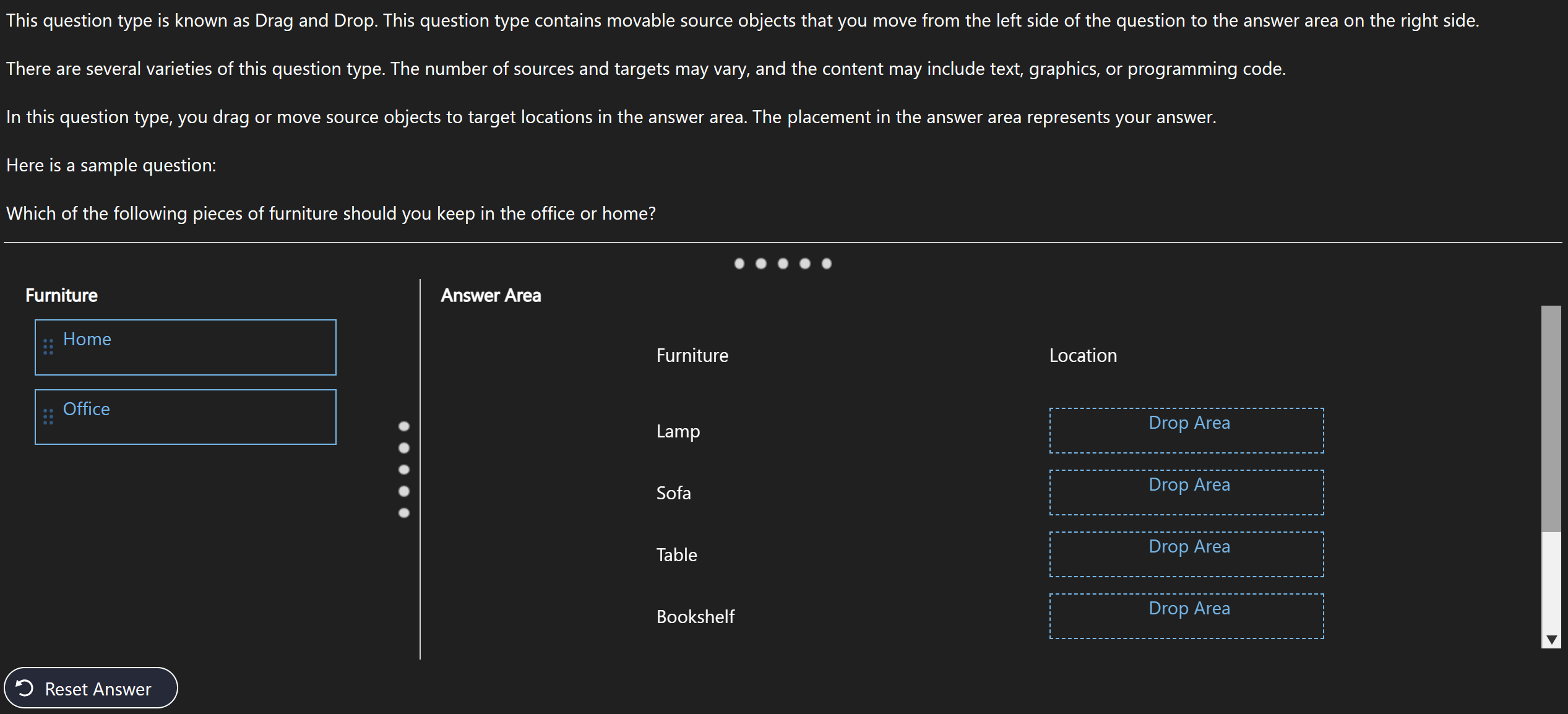
As the name says, pretty self-explanatory. Drag an answer from left to right.
:::tip
Usually there aren't more of the same answers on the right so if you have 3 on the left and 3 on the right and have no idea, there is a good chance that all answers will be used once. **That isn't the case with some questions** but most I encountered used this pattern.
:::
### [Drag and Drop](https://learn.microsoft.com/credentials/support/exam-duration-exam-experience?WT.mc_id=studentamb_165290#drag-and-drop-037)
As the name says, pretty self-explanatory. Drag an answer from left to right.
:::tip
Usually there aren't more of the same answers on the right so if you have 3 on the left and 3 on the right and have no idea, there is a good chance that all answers will be used once. **That isn't the case with some questions** but most I encountered used this pattern.
:::
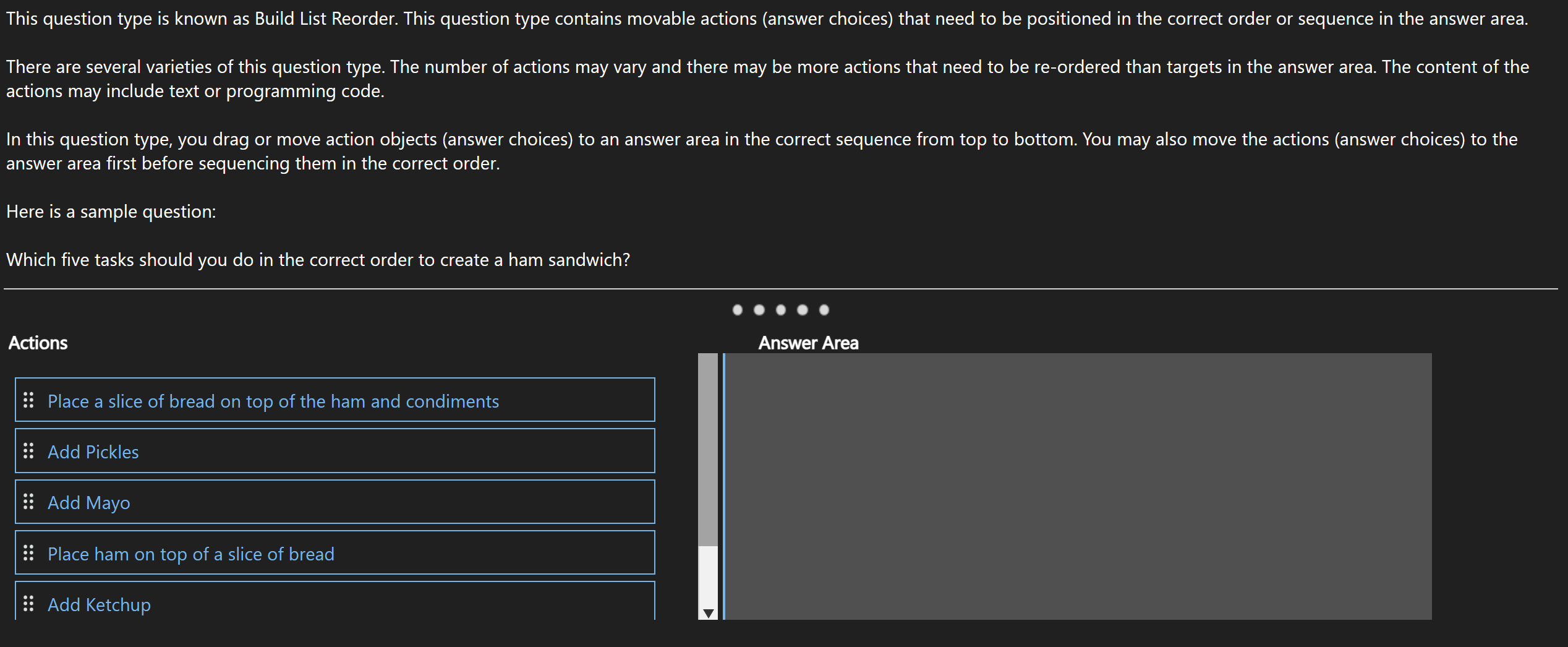
 ### [Build List](https://learn.microsoft.com/credentials/support/exam-duration-exam-experience?WT.mc_id=studentamb_165290#build-list-045)
Similar to the Drag and Drop, but now you are making a list. So, you will also need to order it correctly.
:::tip
**Don't forget about the basics**, like resource providers in PowerShell or create resource button in Azure Portal.
:::
### [Build List](https://learn.microsoft.com/credentials/support/exam-duration-exam-experience?WT.mc_id=studentamb_165290#build-list-045)
Similar to the Drag and Drop, but now you are making a list. So, you will also need to order it correctly.
:::tip
**Don't forget about the basics**, like resource providers in PowerShell or create resource button in Azure Portal.
:::
 ## Exam question types that appear in role-based/non-fundamental exams:
### [Problem Solution Question Set](https://learn.microsoft.com/credentials/support/exam-duration-exam-experience?WT.mc_id=studentamb_165290#repeated-answer-choices-020)
## Exam question types that appear in role-based/non-fundamental exams:
### [Problem Solution Question Set](https://learn.microsoft.com/credentials/support/exam-duration-exam-experience?WT.mc_id=studentamb_165290#repeated-answer-choices-020)
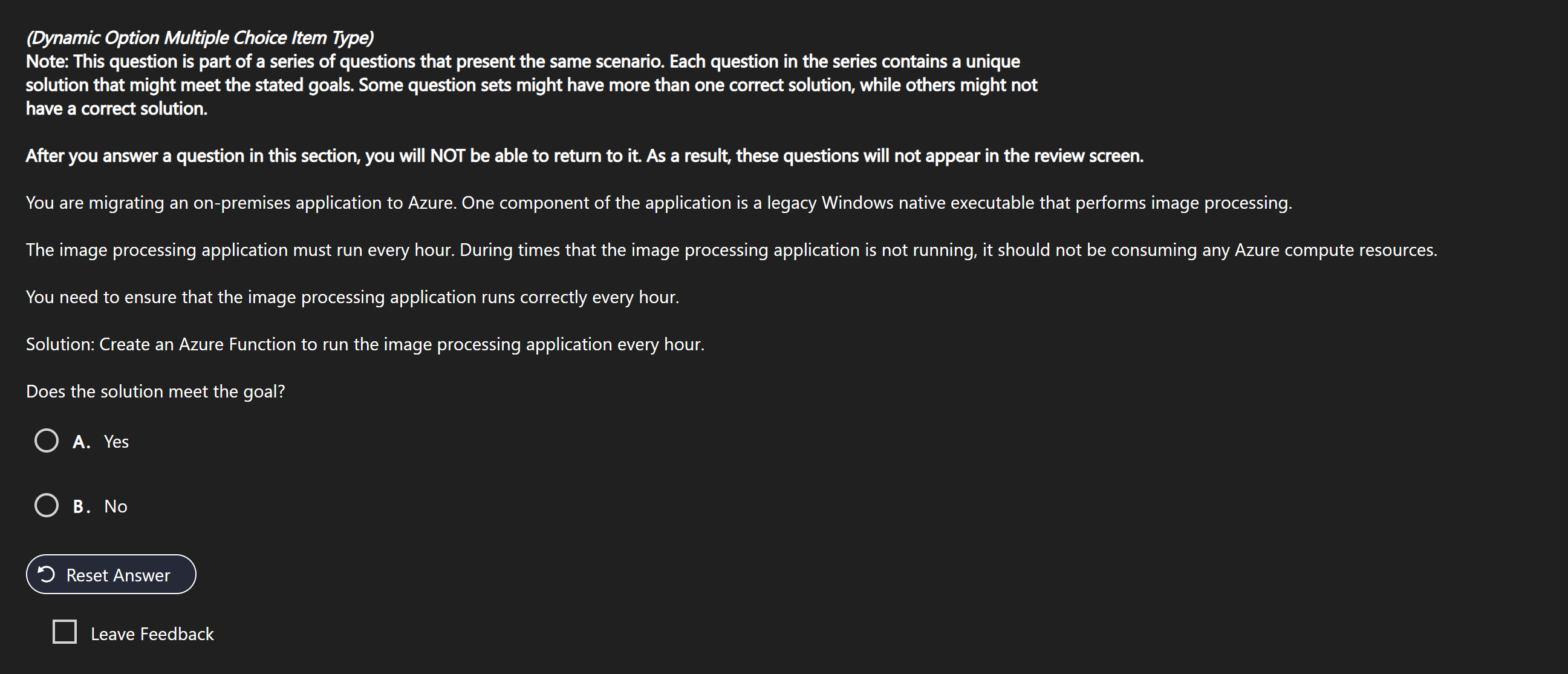
 Probably the strangest and most confusing question type you will encounter if you haven't heard about it before.
* You will be presented with one scenario (per set, there might be more scenarios).
* There will be a possible solution and you will be asked if it is a **full** solution to the scenario and problem.
* There will be multiple questions presenting the same scenario but different solutions.
* **After answering the question, you may not return to it.**
* There are usually around 4 questions in a scenario.
Probably the strangest and most confusing question type you will encounter if you haven't heard about it before.
* You will be presented with one scenario (per set, there might be more scenarios).
* There will be a possible solution and you will be asked if it is a **full** solution to the scenario and problem.
* There will be multiple questions presenting the same scenario but different solutions.
* **After answering the question, you may not return to it.**
* There are usually around 4 questions in a scenario.
 :::tip
The strategy here is simple, if you aren't **100%** sure, pick **false**. There are 3 patterns, there either isn't presented correct answer, there is only one and there are 2. From my own experience the chance there are 2 answers is really low. So statistically it is best to always pick false unless you are sure it is correct.
:::
### [Simulations/Labs](https://learn.microsoft.com/credentials/support/exam-duration-exam-experience?WT.mc_id=studentamb_165290#labs-258)
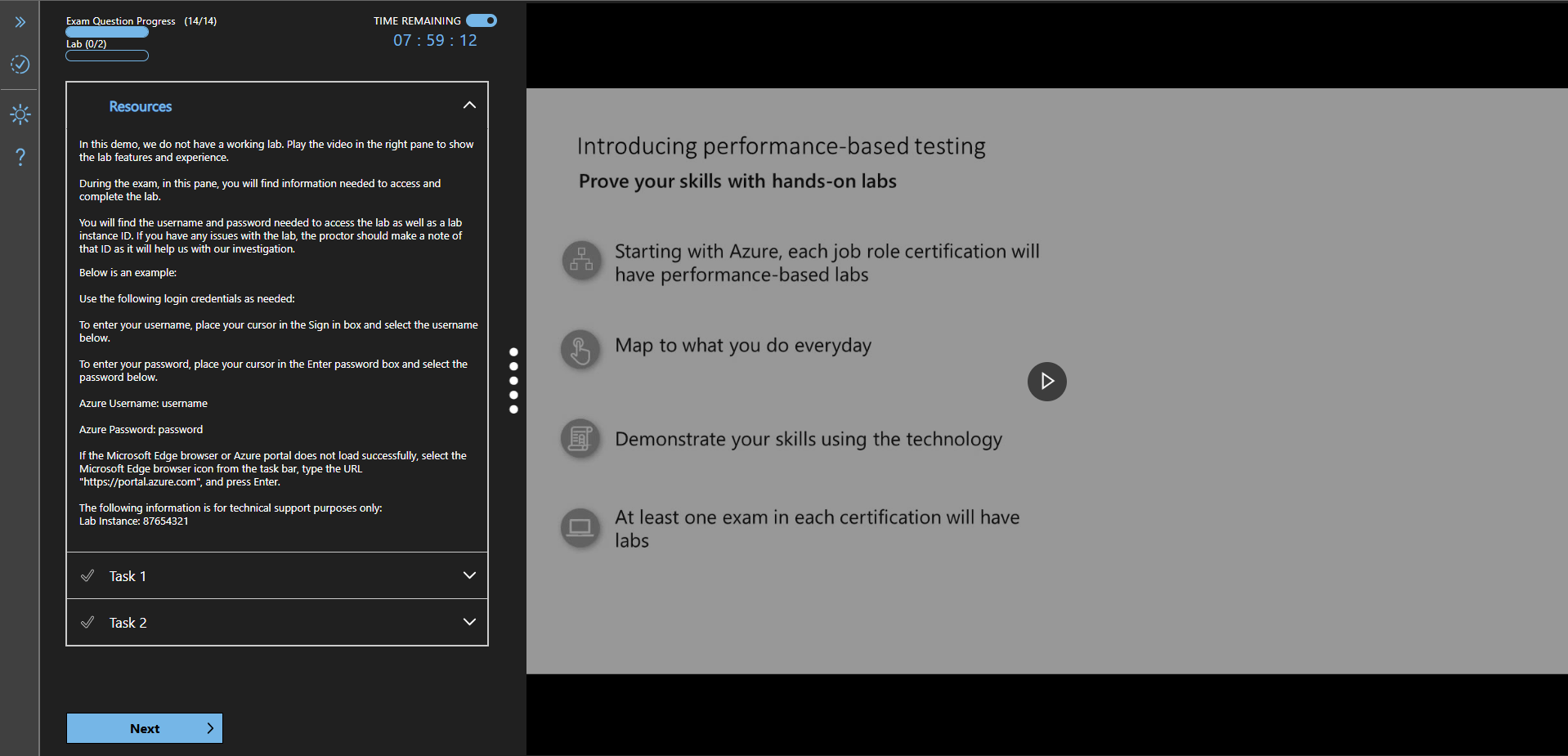
When you get to the lab portion of the exam, you will first be informed how labs work in this screen.
:::tip
The strategy here is simple, if you aren't **100%** sure, pick **false**. There are 3 patterns, there either isn't presented correct answer, there is only one and there are 2. From my own experience the chance there are 2 answers is really low. So statistically it is best to always pick false unless you are sure it is correct.
:::
### [Simulations/Labs](https://learn.microsoft.com/credentials/support/exam-duration-exam-experience?WT.mc_id=studentamb_165290#labs-258)
When you get to the lab portion of the exam, you will first be informed how labs work in this screen.
 After that, you will enter a virtual environment and will have to complete a series of tasks there. The only thing that matters is to get the task done. So if you are more comfortable using Cloud Shell, go for it. It is only the result that counts. Be aware that you cannot use internet to search stuff up. Here is how the lab interface looks like (in the actual lab, there will be a VM running instead of the video where you will do the actual tasks).
 :::note
Labs take longer to score so you will not receive your score immediately upon finishing the exam.
:::
#### [MFA during your Simulation/Lab](https://learn.microsoft.com/credentials/support/exam-duration-exam-experience?WT.mc_id=studentamb_165290#certification-exam-lab-and-applied-skills-assessment-lab-authenticator-app)
:::danger
Due to security requirements, to access Microsoft Admin Portals, you need to use Multifactor Authentication (MFA). This also affects exam labs and has been causing problems for test takers.
There has been some confusion where people have not been able to set up MFA in the lab and therefore couldn't access the portals and complete the tasks. Of course this means you will lose a lot of points.
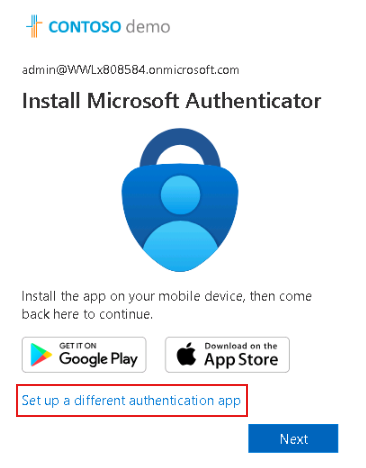
When you are prompted to set up MFA, first option during your sign-in to your account will be Microsoft Authenticator app. This won't work as you don't have acccess to set it up. But you do have access to third-party MFA app in your virtual machine where your lab is happening.
You need to click on the small blue text saying "Set up a different authentication app" and then follow the rest of the instructions.
If you do not do this, you won't have access to the lab and you will score zero on it, losing you tons of points from your grade.
:::
:::note
Labs take longer to score so you will not receive your score immediately upon finishing the exam.
:::
#### [MFA during your Simulation/Lab](https://learn.microsoft.com/credentials/support/exam-duration-exam-experience?WT.mc_id=studentamb_165290#certification-exam-lab-and-applied-skills-assessment-lab-authenticator-app)
:::danger
Due to security requirements, to access Microsoft Admin Portals, you need to use Multifactor Authentication (MFA). This also affects exam labs and has been causing problems for test takers.
There has been some confusion where people have not been able to set up MFA in the lab and therefore couldn't access the portals and complete the tasks. Of course this means you will lose a lot of points.
When you are prompted to set up MFA, first option during your sign-in to your account will be Microsoft Authenticator app. This won't work as you don't have acccess to set it up. But you do have access to third-party MFA app in your virtual machine where your lab is happening.
You need to click on the small blue text saying "Set up a different authentication app" and then follow the rest of the instructions.
If you do not do this, you won't have access to the lab and you will score zero on it, losing you tons of points from your grade.
:::
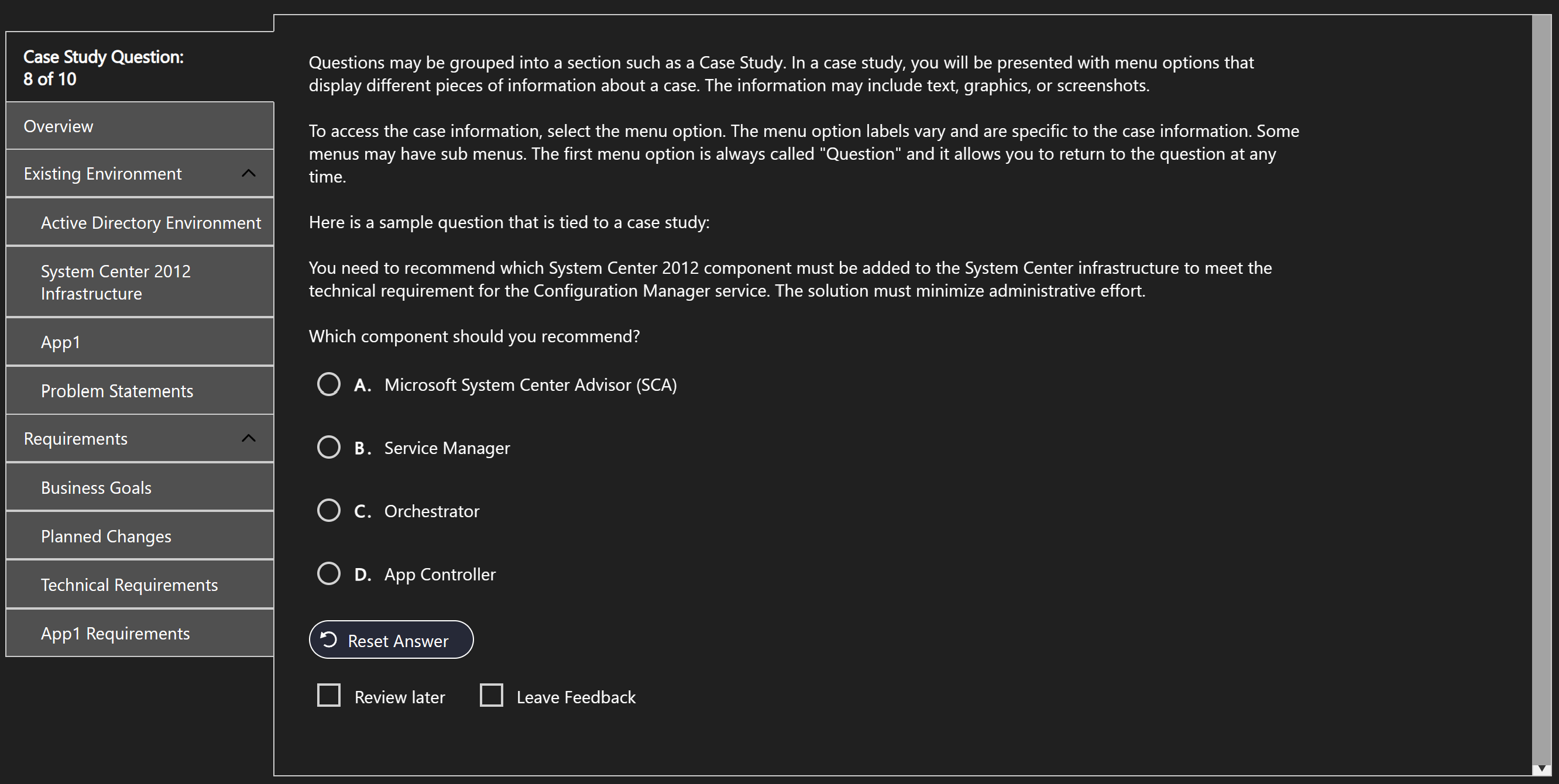
 ### [Case Study](https://learn.microsoft.com/credentials/support/exam-duration-exam-experience?WT.mc_id=studentamb_165290#case-studies-113)
You will be shown a screen with a lot of tabs and screens with tons of information in them.
:::tip
The important thing here: **Don't read it all!** The first screen doesn't contain the question, so you will have to go to the next one. Only after reading the question, start going through the relevant materials.
:::
### [Case Study](https://learn.microsoft.com/credentials/support/exam-duration-exam-experience?WT.mc_id=studentamb_165290#case-studies-113)
You will be shown a screen with a lot of tabs and screens with tons of information in them.
:::tip
The important thing here: **Don't read it all!** The first screen doesn't contain the question, so you will have to go to the next one. Only after reading the question, start going through the relevant materials.
:::
 After you finish all your questions in the section, you will be presented with the Review screen (also accessible from the top tool bar).
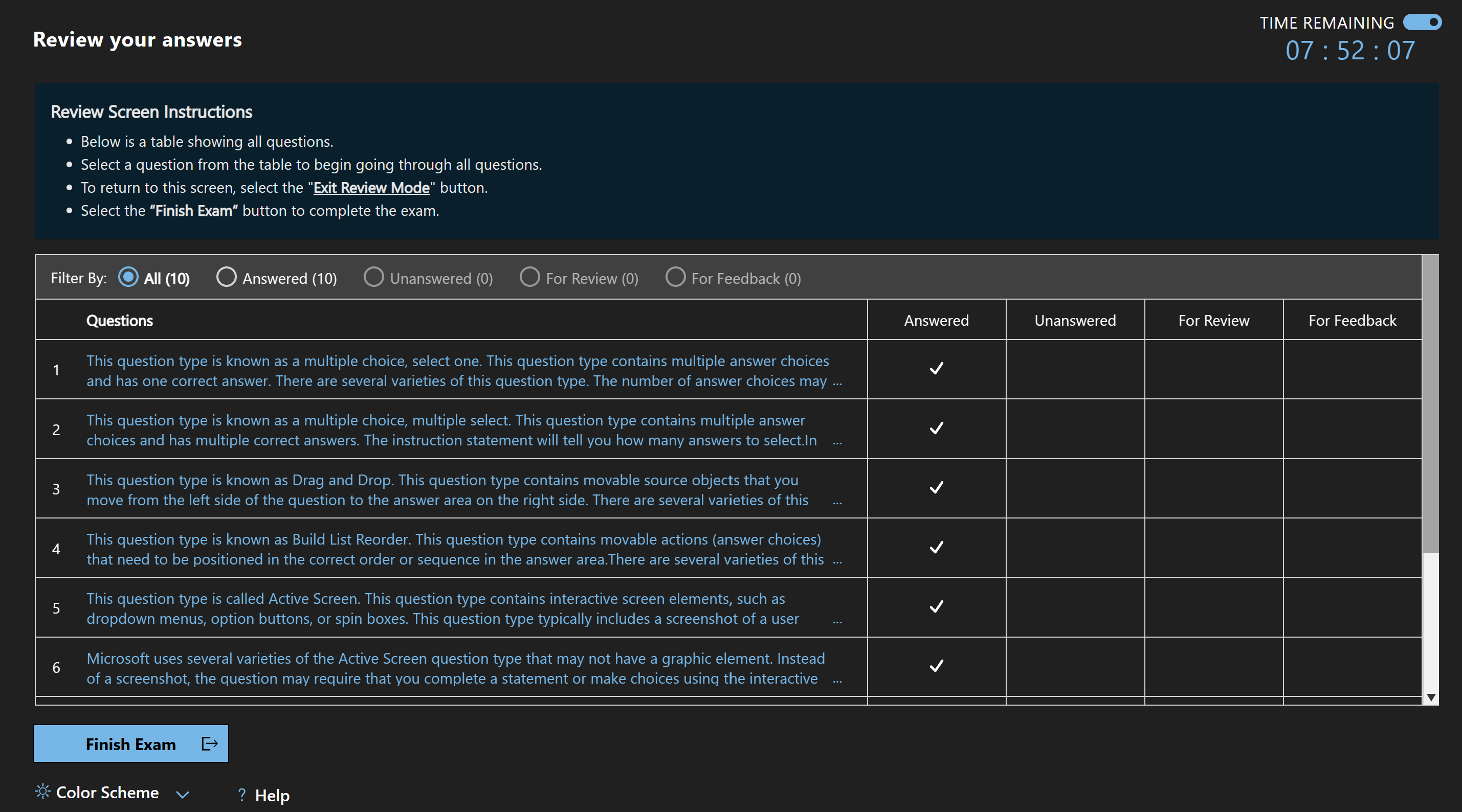 This doesn't necessarily mean it is the end of the exam as there may be case study or lab after. Here you can see how you and can easily access questions you didn't answer or marked for review. **Always answer all questions, even if you have no clue. You don't get negative points for guessing. If you finish the review screen and there are still unanswered questions, you've done it wrong.**
## After the exam
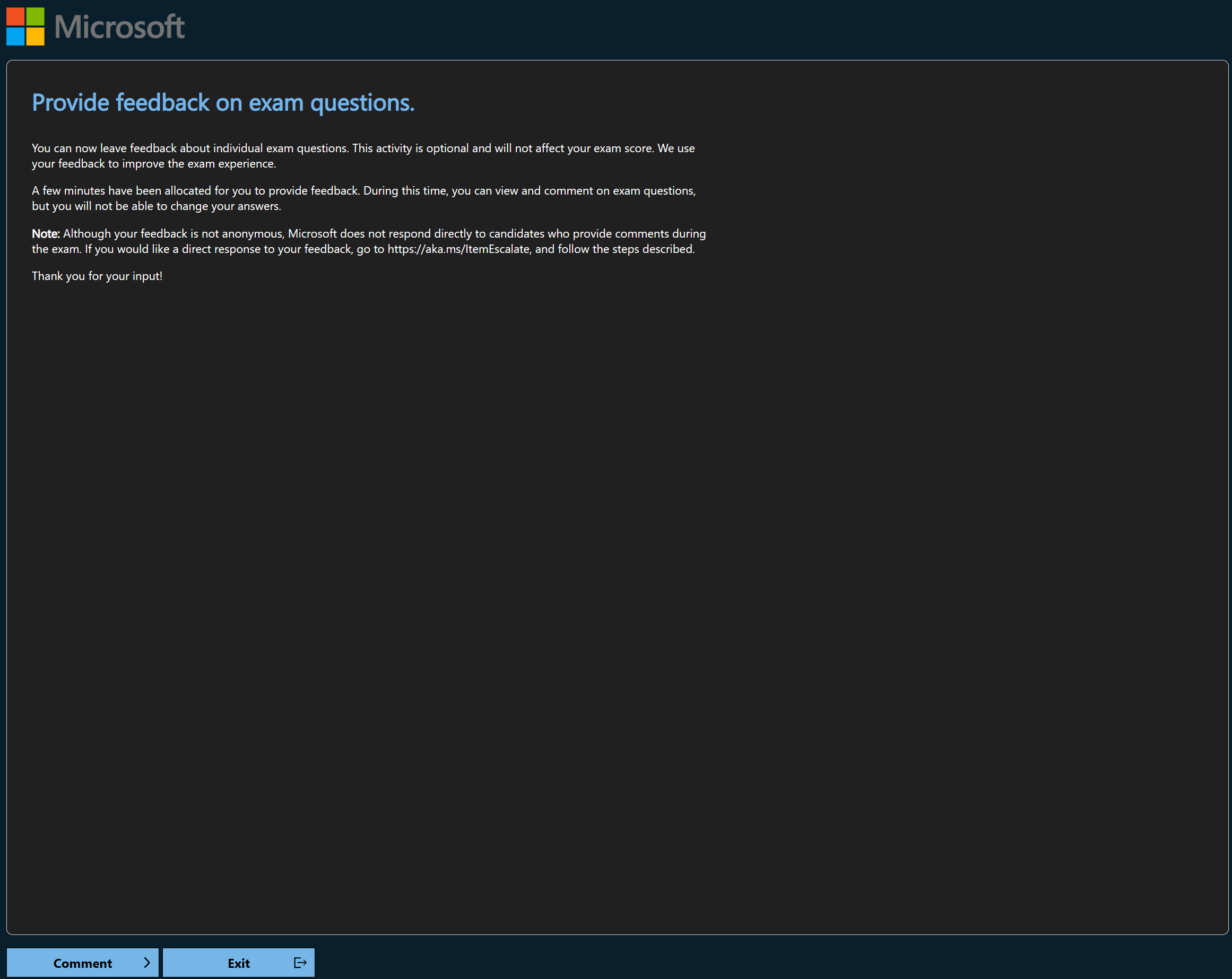
After finishing the whole exam, it still isn't over. Once you get to this window and don't want to leave feedback to the questions (or are just really anxious about how you did). **Ignore it. In the bottom there is Exit button.**
This doesn't necessarily mean it is the end of the exam as there may be case study or lab after. Here you can see how you and can easily access questions you didn't answer or marked for review. **Always answer all questions, even if you have no clue. You don't get negative points for guessing. If you finish the review screen and there are still unanswered questions, you've done it wrong.**
## After the exam
After finishing the whole exam, it still isn't over. Once you get to this window and don't want to leave feedback to the questions (or are just really anxious about how you did). **Ignore it. In the bottom there is Exit button.**
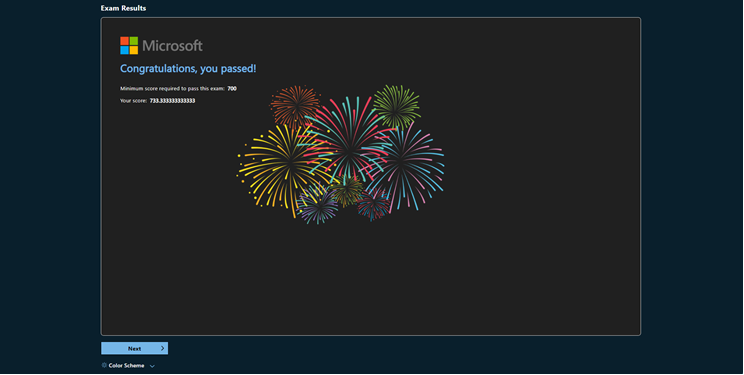
 This will take you to the result page (if you had a lab, you won't get your result immediately).
In case you pass, you will see these cool fireworks!
This will take you to the result page (if you had a lab, you won't get your result immediately).
In case you pass, you will see these cool fireworks!
 On the next page you will see your score report no need to read it now, can access it from PearsonVue later on. **And only once you hit the End button there, you have finished the exam.**
:::caution
This is especially important when taking a test from home so you don't get your exam revoked for leaving the camera/picking up your phone etc. before you officially end the exam.
:::
## How to read Exam Score Reports
:::note
This section is aimed at people who failed their exams. If you passed, it doesn't matter what is on your score report.
:::
Important information here:
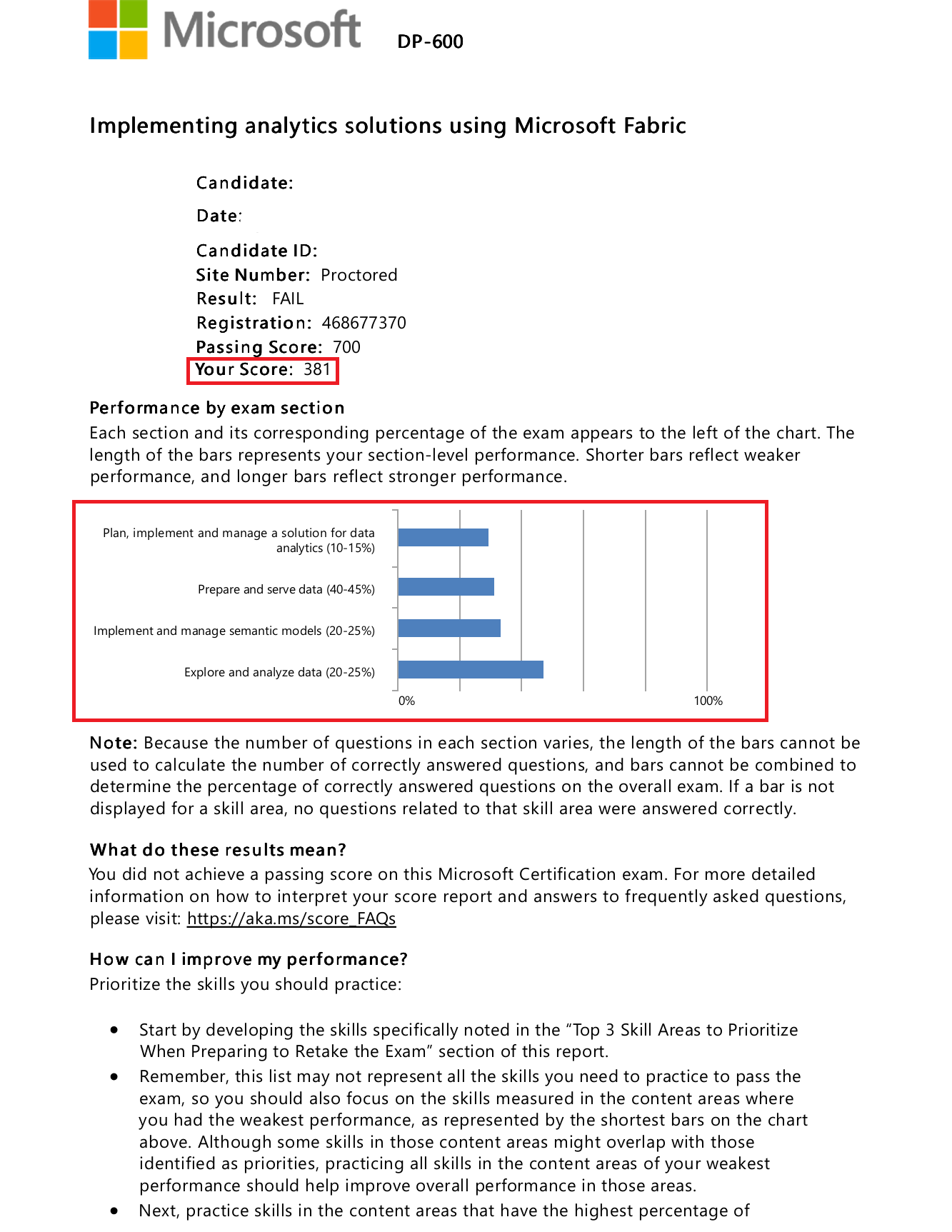
* **Your score**.
* Passing score is 700 or more so that is the goal you need to aim for in your next attempt.
* **Your performance in different sections**.
* This is important because it tells you where you need to improve. If you see a section with short bar, focus on that area when studying for your next attempt.
* Keep in mind that the maximum score is 1000, not 700 so having a section around the 700 point mark/70% is decent but not good enough.
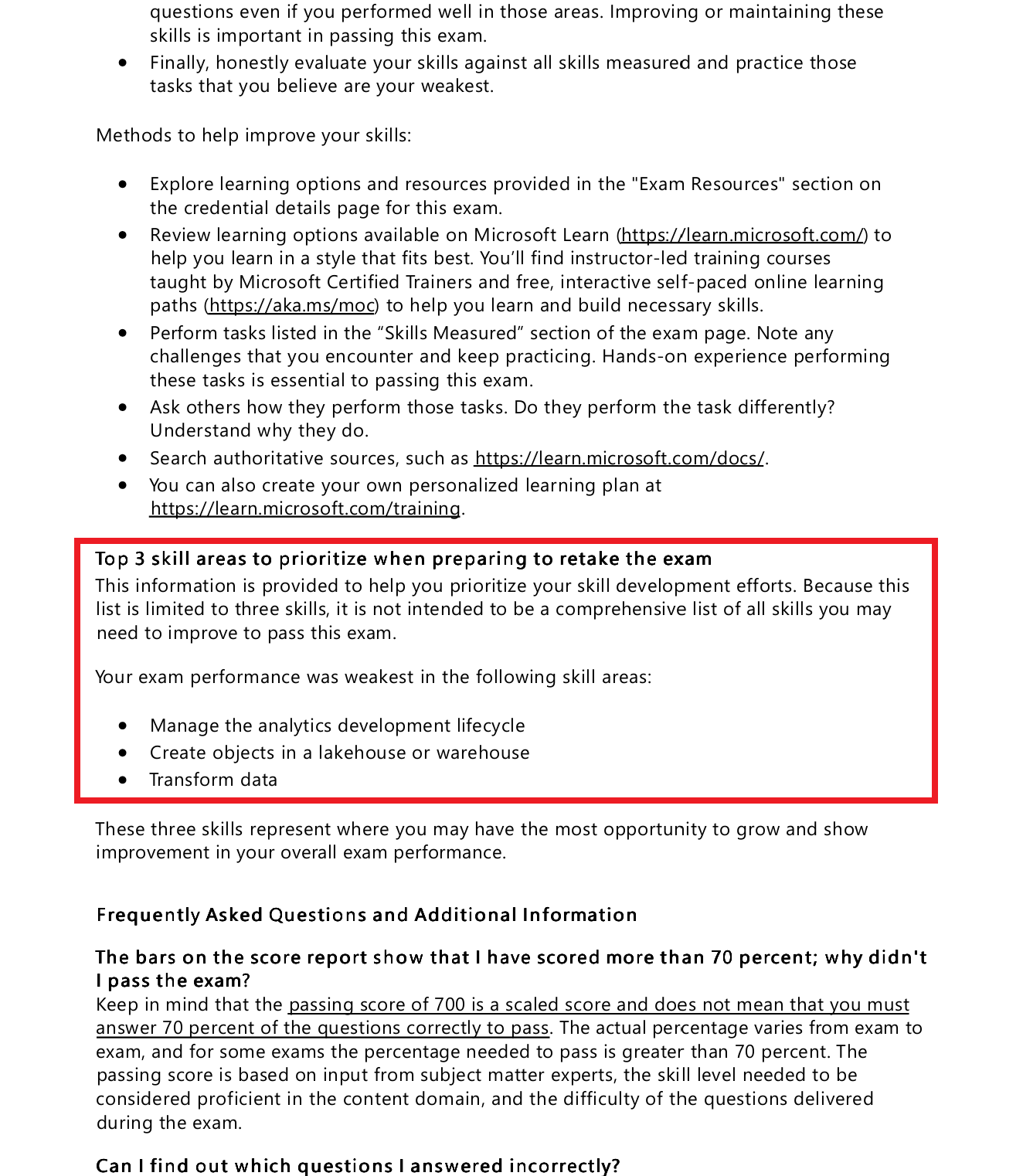
* **On second page there is a section with 3 worst areas you have performed in**.
* Focus on these areas primarily when studying for your next attempt. This area will only show for failed exams.
On the next page you will see your score report no need to read it now, can access it from PearsonVue later on. **And only once you hit the End button there, you have finished the exam.**
:::caution
This is especially important when taking a test from home so you don't get your exam revoked for leaving the camera/picking up your phone etc. before you officially end the exam.
:::
## How to read Exam Score Reports
:::note
This section is aimed at people who failed their exams. If you passed, it doesn't matter what is on your score report.
:::
Important information here:
* **Your score**.
* Passing score is 700 or more so that is the goal you need to aim for in your next attempt.
* **Your performance in different sections**.
* This is important because it tells you where you need to improve. If you see a section with short bar, focus on that area when studying for your next attempt.
* Keep in mind that the maximum score is 1000, not 700 so having a section around the 700 point mark/70% is decent but not good enough.
* **On second page there is a section with 3 worst areas you have performed in**.
* Focus on these areas primarily when studying for your next attempt. This area will only show for failed exams.
 ***
### Sources
Prepare for an exam | Microsoft Learn
Microsoft Learn for Exams | Techcommunity
How to use Microsoft Learn during the exam | Microsoft Video
***
### Sources
Prepare for an exam | Microsoft Learn
Microsoft Learn for Exams | Techcommunity
How to use Microsoft Learn during the exam | Microsoft Video