---
title: Exam Scheduling & Voucher Redemption
description: How to schedule an exam and redeem a voucher code for exams
---
You can start the exam ordering process on the exam website, the URL is: aka.ms/examname so for example [aka.ms/sc100](https://learn.microsoft.com/credentials/certifications/exams/sc-100/?WT.mc_id=studentamb_165290) or [aka.ms/az-400](https://learn.microsoft.com/credentials/certifications/exams/az-400/?WT.mc_id=studentamb_165290) , if it doesn't work then you can find all of them [here](https://aka.ms/traincertposter).
> **CAUTION:**
>
> You can only have 2 exams scheduled at the same time.
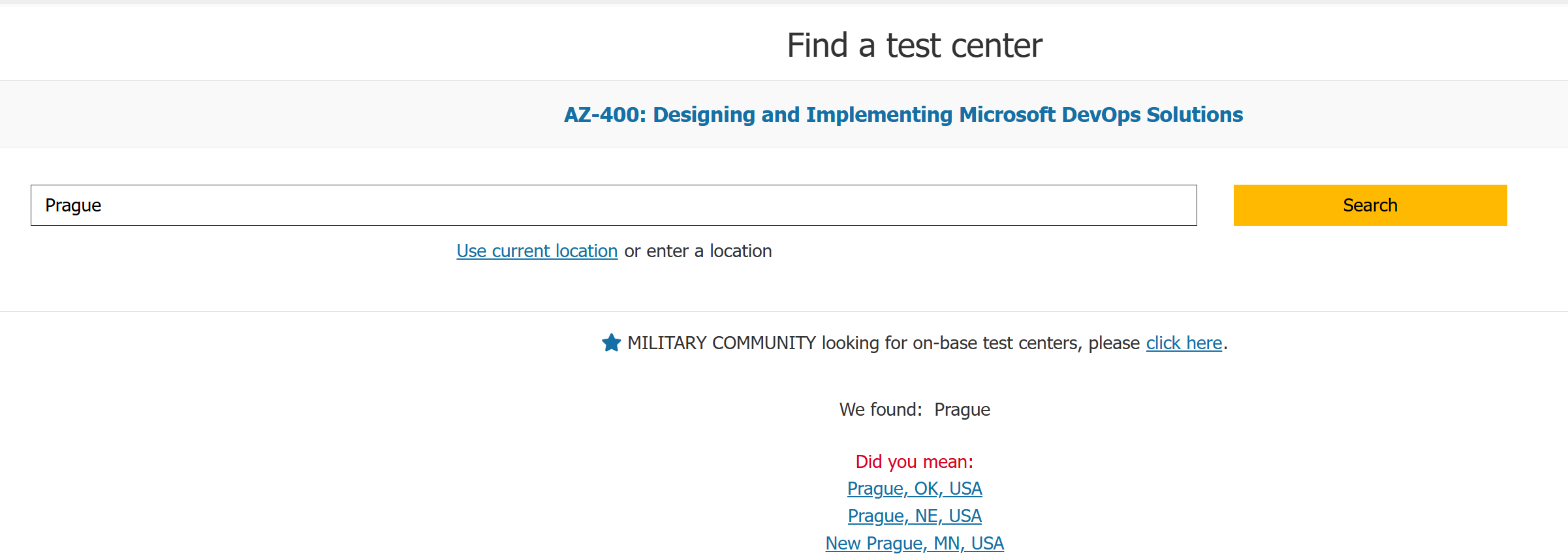
Then you scroll down to the "Schedule exam" section. For some exams there is also the option to take it through CertiPort, this option is mainly for students, you want the **PearsonVue** option here.
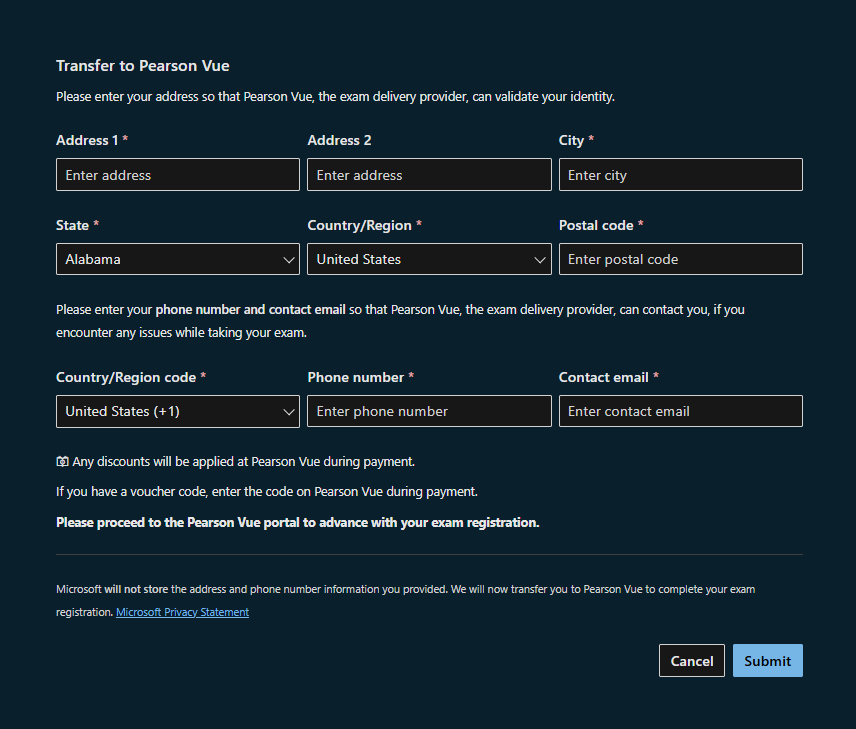
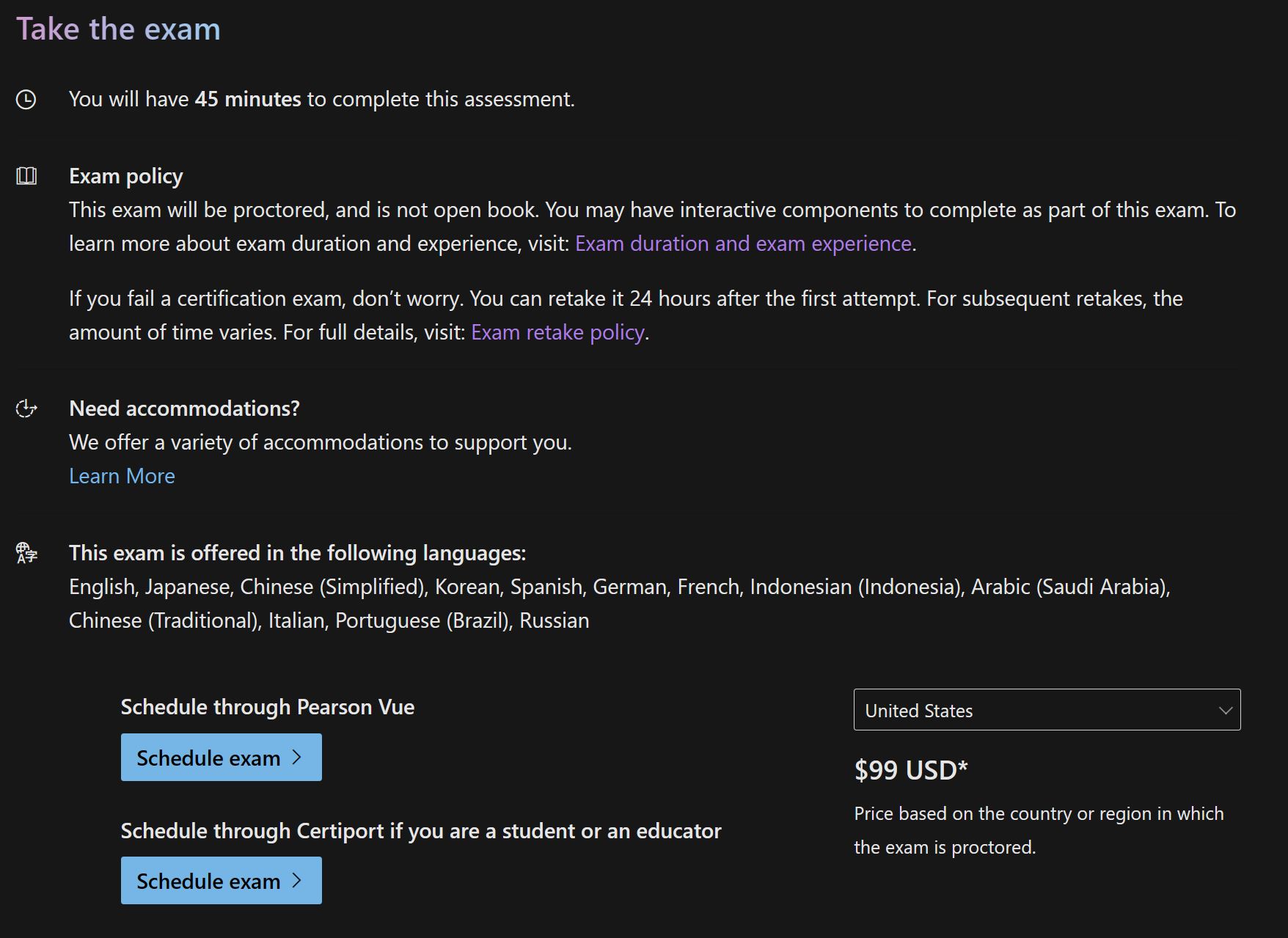 After clicking **Schedule exam**, you will be taken to the Transfer to Pearson page where you need to fill out your details regarding the exam registration. Keep in mind that these details need to match your ID exactly.
:::caution
You can't use symbols/special characters here, so in case your address contains symbols or special characters from your language, use their english equivalent. In case you are getting an error, it is probably because you used special characters/symbols (or the service is having an outage).
:::
After clicking **Schedule exam**, you will be taken to the Transfer to Pearson page where you need to fill out your details regarding the exam registration. Keep in mind that these details need to match your ID exactly.
:::caution
You can't use symbols/special characters here, so in case your address contains symbols or special characters from your language, use their english equivalent. In case you are getting an error, it is probably because you used special characters/symbols (or the service is having an outage).
:::
 After you click **Submit**, you are then transferred to PearsonVue portal.
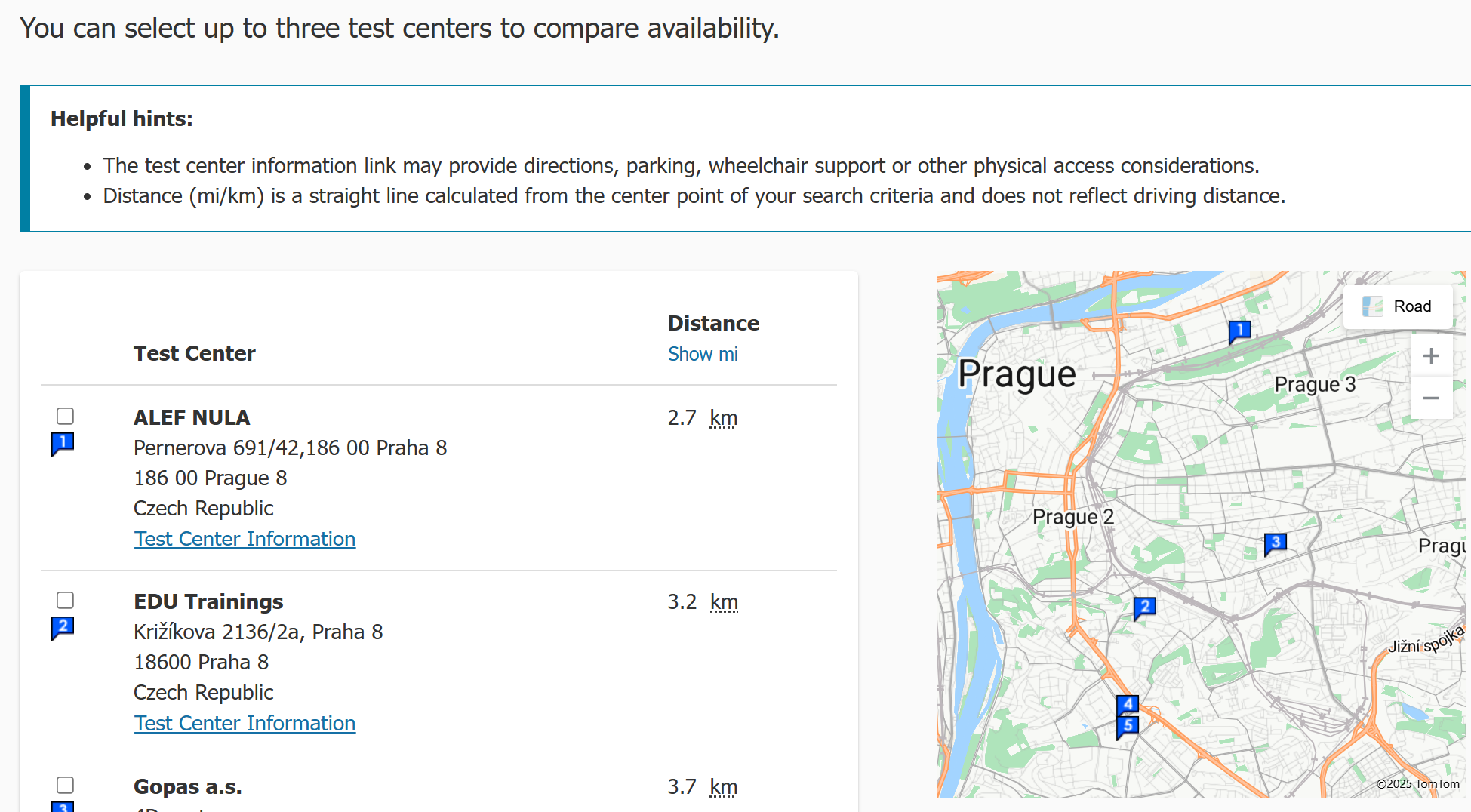
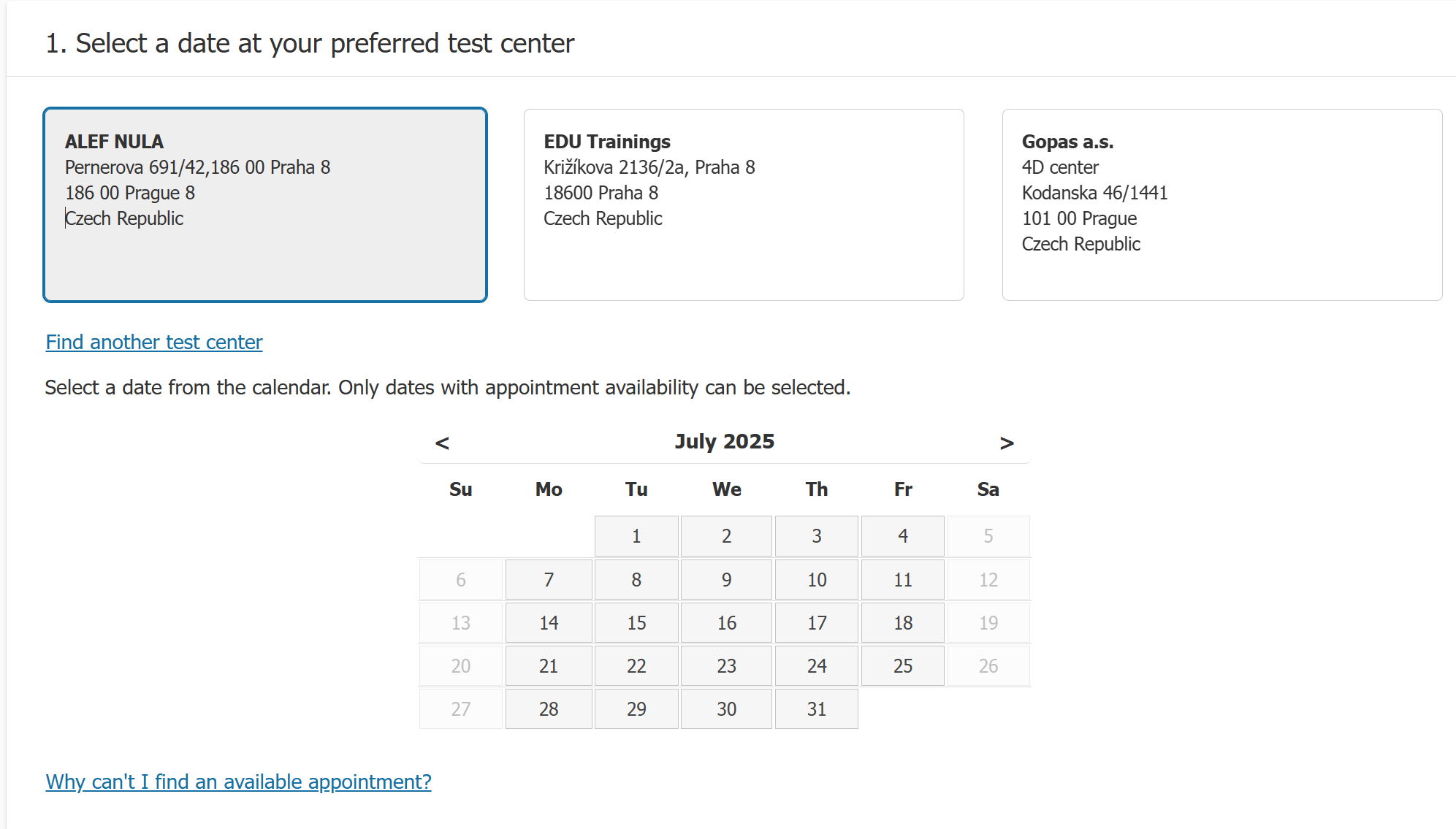
First you need to choose how you will take the exam. The choices are:
After you click **Submit**, you are then transferred to PearsonVue portal.
First you need to choose how you will take the exam. The choices are:
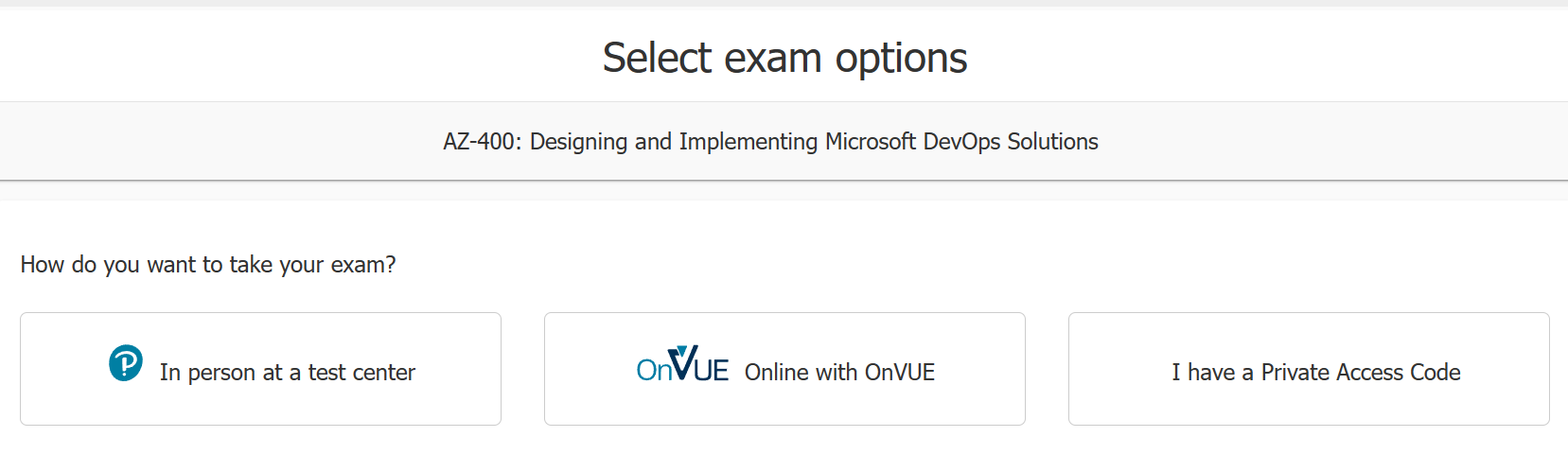 * At a test center - you will physically have to go to the location and take the exam there (this is the best option, more on that later)
* Online using the OnVue app - you will take the exam in your home/office, no need to travel anywhere (this is not the recommended option)
* Using the Private Access Code - some training courses (usually the paid ones) end with the class taking the exam right there. You can also get the code if you have relationship with a private testing center that can schedule you individually.
After you click on one of the options, you can see more specific information. When rescheduling, you can't switch between them, you must cancel and order the exam again. This will most probably not return a voucher if you used one. You will need to contact [Certification Support](https://aka.ms/certificationsupport) if that is the case.
### Testing Center vs Online exams
| Onsite | Online |
| -------- | ------- |
| Should arrive 15 minutes before the exam starts | Should check in 30 minutes before the exam starts |
| Testing center is responsible for equipment working | You are responsible for your equipment working |
| You are placed in a room where there might be other people taking exams | You are at home where the room needs to be locked, stripped of everything that could be used for cheating and photographed |
| You need to bring a valid ID, take a picture and sign a document | You need to take a picture of your ID, take picture of yourself and multiple pictures of your testing space |
| You get a small whiteboard with a dry-erase marker to take notes | Whiteboard is provided in the testing environment to take notes but you need to write with your mouse |
| You are not forced to look at the exam screen the whole time | If you don't look at the screen the whole time, the proctor might revoke your exam |
**Onsite:**
### For the testing center exams:
* At a test center - you will physically have to go to the location and take the exam there (this is the best option, more on that later)
* Online using the OnVue app - you will take the exam in your home/office, no need to travel anywhere (this is not the recommended option)
* Using the Private Access Code - some training courses (usually the paid ones) end with the class taking the exam right there. You can also get the code if you have relationship with a private testing center that can schedule you individually.
After you click on one of the options, you can see more specific information. When rescheduling, you can't switch between them, you must cancel and order the exam again. This will most probably not return a voucher if you used one. You will need to contact [Certification Support](https://aka.ms/certificationsupport) if that is the case.
### Testing Center vs Online exams
| Onsite | Online |
| -------- | ------- |
| Should arrive 15 minutes before the exam starts | Should check in 30 minutes before the exam starts |
| Testing center is responsible for equipment working | You are responsible for your equipment working |
| You are placed in a room where there might be other people taking exams | You are at home where the room needs to be locked, stripped of everything that could be used for cheating and photographed |
| You need to bring a valid ID, take a picture and sign a document | You need to take a picture of your ID, take picture of yourself and multiple pictures of your testing space |
| You get a small whiteboard with a dry-erase marker to take notes | Whiteboard is provided in the testing environment to take notes but you need to write with your mouse |
| You are not forced to look at the exam screen the whole time | If you don't look at the screen the whole time, the proctor might revoke your exam |
**Onsite:**
### For the testing center exams:
 :::tip
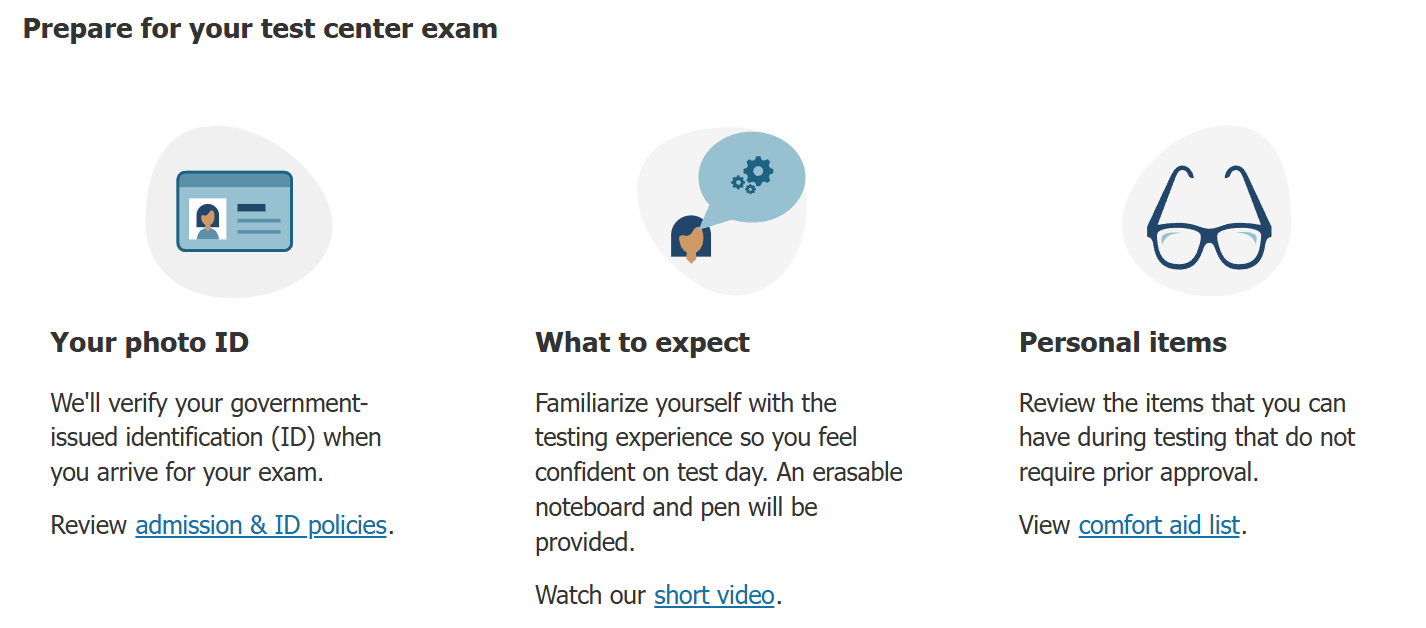
* Bring government issued ID with a photo on it with you. If you are taking the exam from another country, there are special ID requirements.
* Arrive at least 15 minutes early to start the check-in process (if you are running late, call ahead so they don't cancel your exam) but if you arrive late there is a chance the exam will be revoked and cancelled. Also, it is good to arrive sooner to have a buffer in case of technical difficulties.
* [Helpful resources for test-takers // Pearson VUE](https://home.pearsonvue.com/Test-takers/Resources.aspx?ot=collapse15)
:::
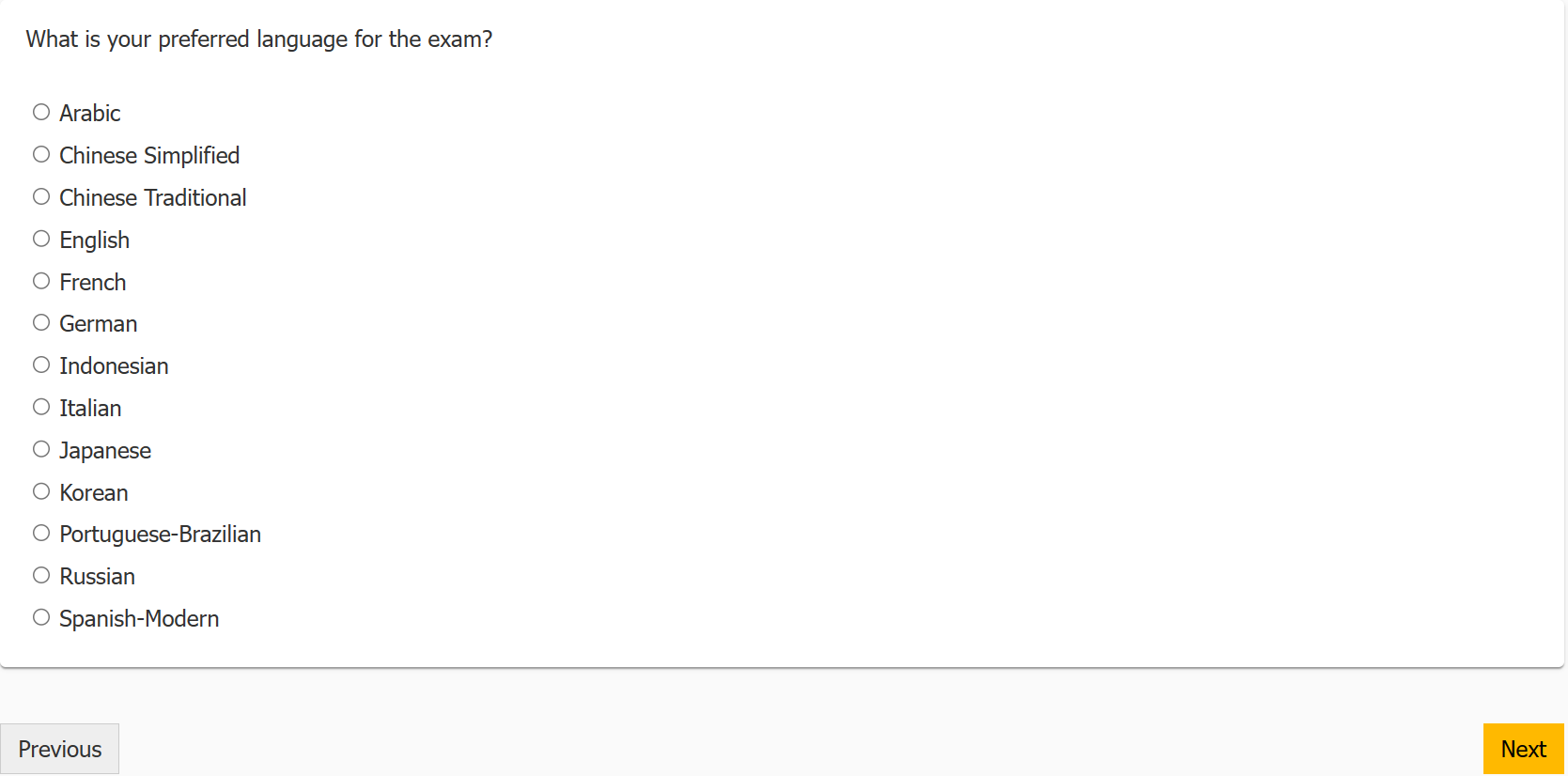
Now you need to choose a language. I personally recommend English as the translations are sometimes weird.
:::tip
If you are not a native English speaker, you can request more time here: [**English as a second language accommodation**](https://learn.microsoft.com/credentials/certifications/available-exam-accommodations-document-requirements?WT.mc_id=studentamb_165290#english-as-a-second-language).
:::
:::tip
* Bring government issued ID with a photo on it with you. If you are taking the exam from another country, there are special ID requirements.
* Arrive at least 15 minutes early to start the check-in process (if you are running late, call ahead so they don't cancel your exam) but if you arrive late there is a chance the exam will be revoked and cancelled. Also, it is good to arrive sooner to have a buffer in case of technical difficulties.
* [Helpful resources for test-takers // Pearson VUE](https://home.pearsonvue.com/Test-takers/Resources.aspx?ot=collapse15)
:::
Now you need to choose a language. I personally recommend English as the translations are sometimes weird.
:::tip
If you are not a native English speaker, you can request more time here: [**English as a second language accommodation**](https://learn.microsoft.com/credentials/certifications/available-exam-accommodations-document-requirements?WT.mc_id=studentamb_165290#english-as-a-second-language).
:::
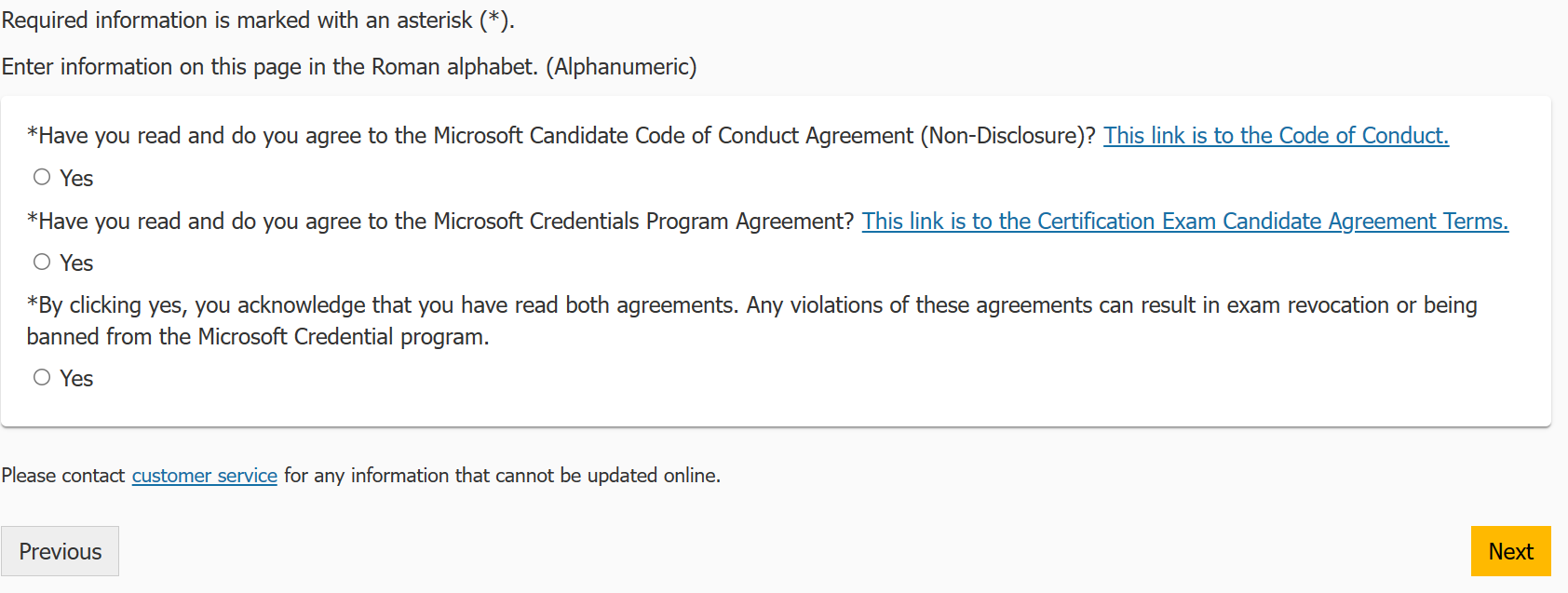
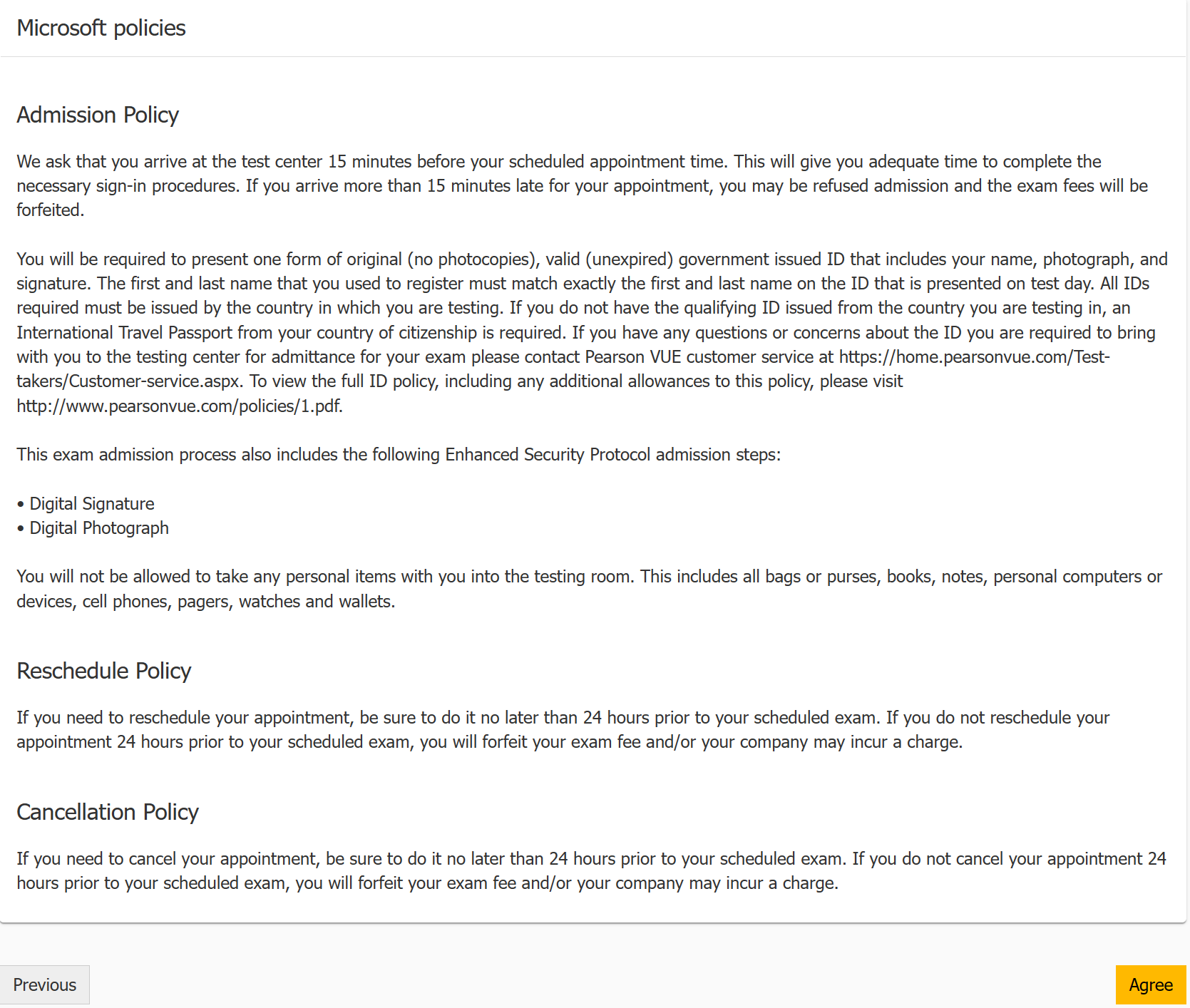
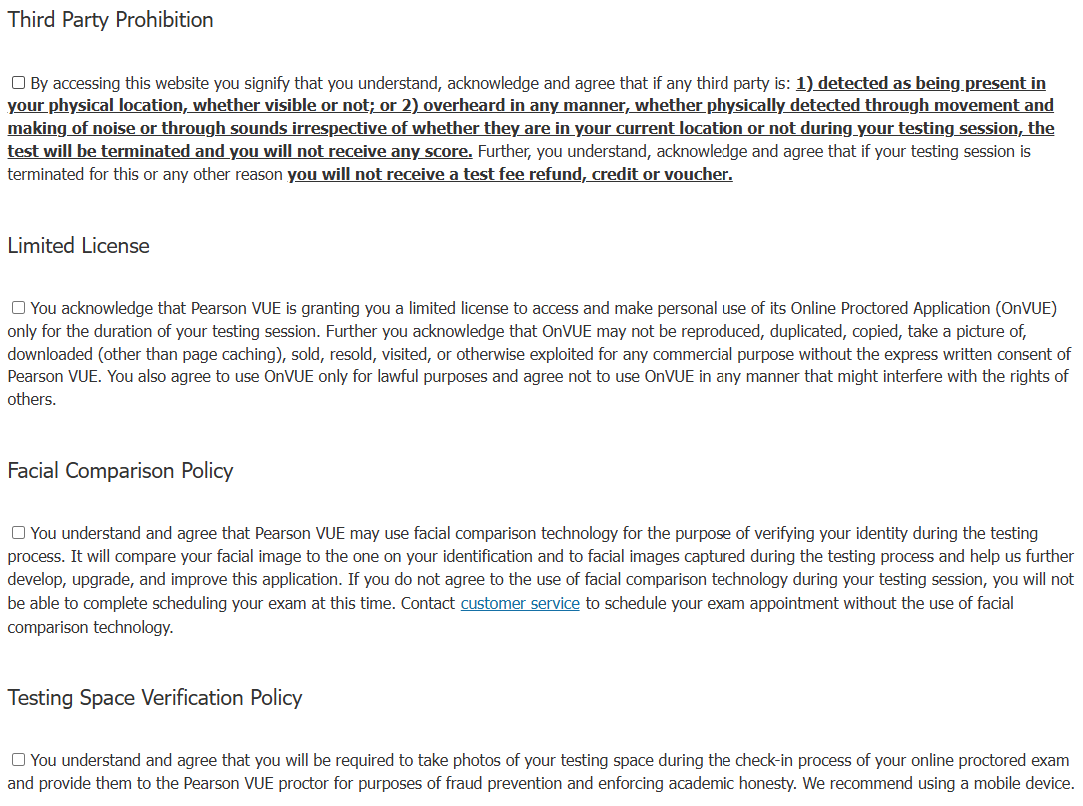
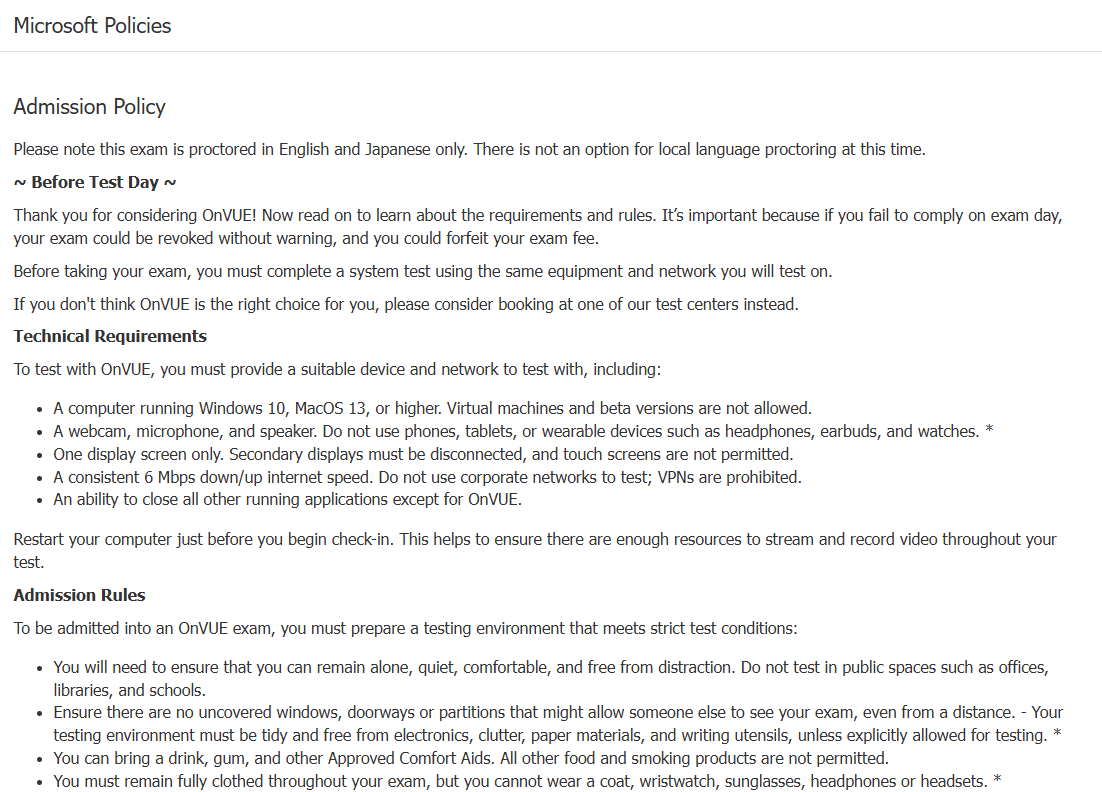
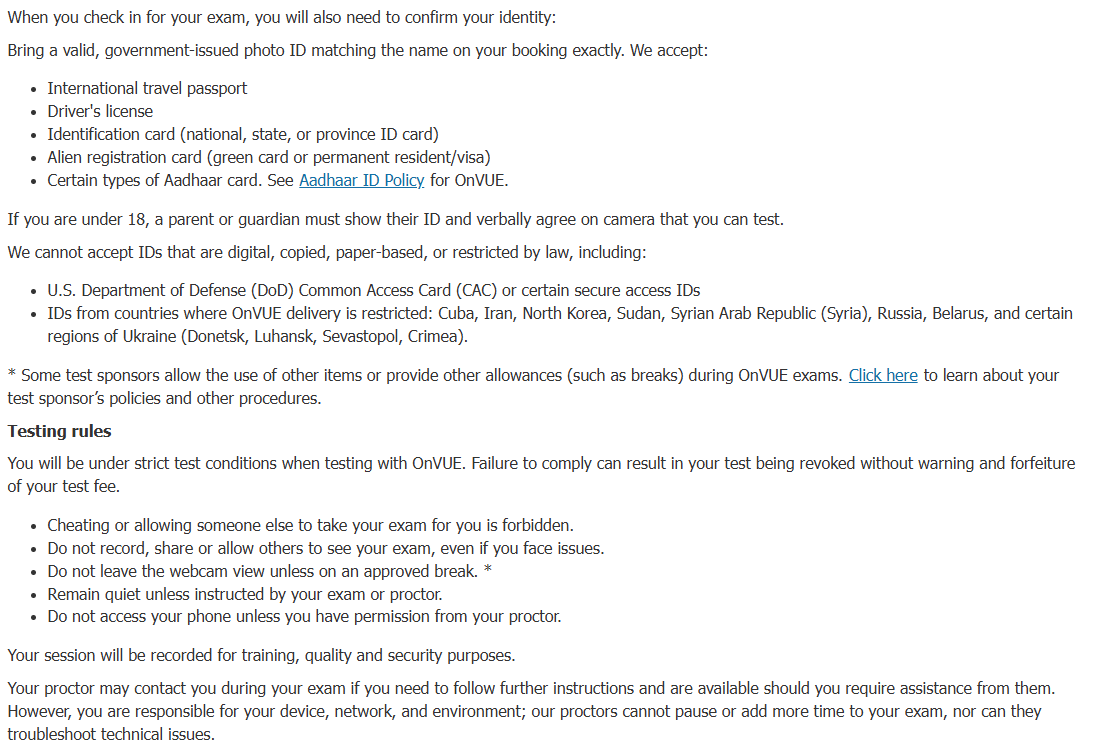
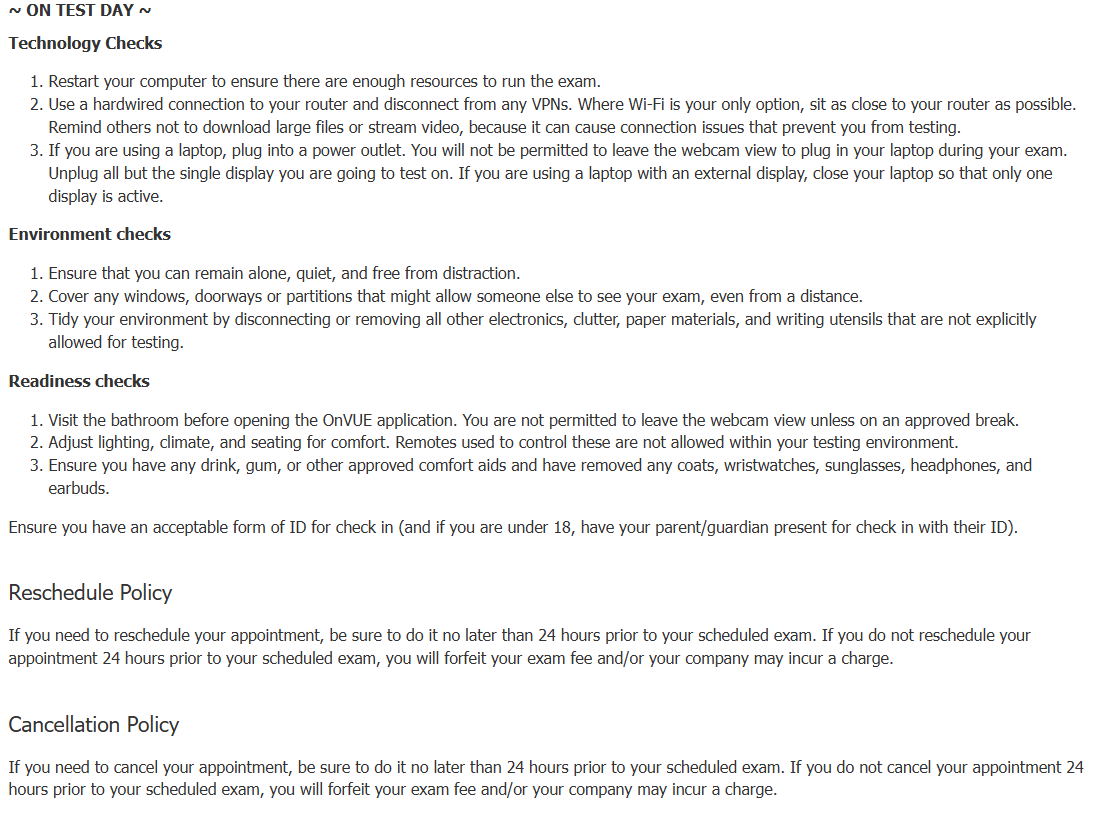
 After selecting a language you get to the policy and general information page. For an online option you need to agree to a bunch of stuff (you can click the text, no need to hit the boxes, saves a few seconds).
 **Online:**
### For online exams
**Online:**
### For online exams
 :::tip
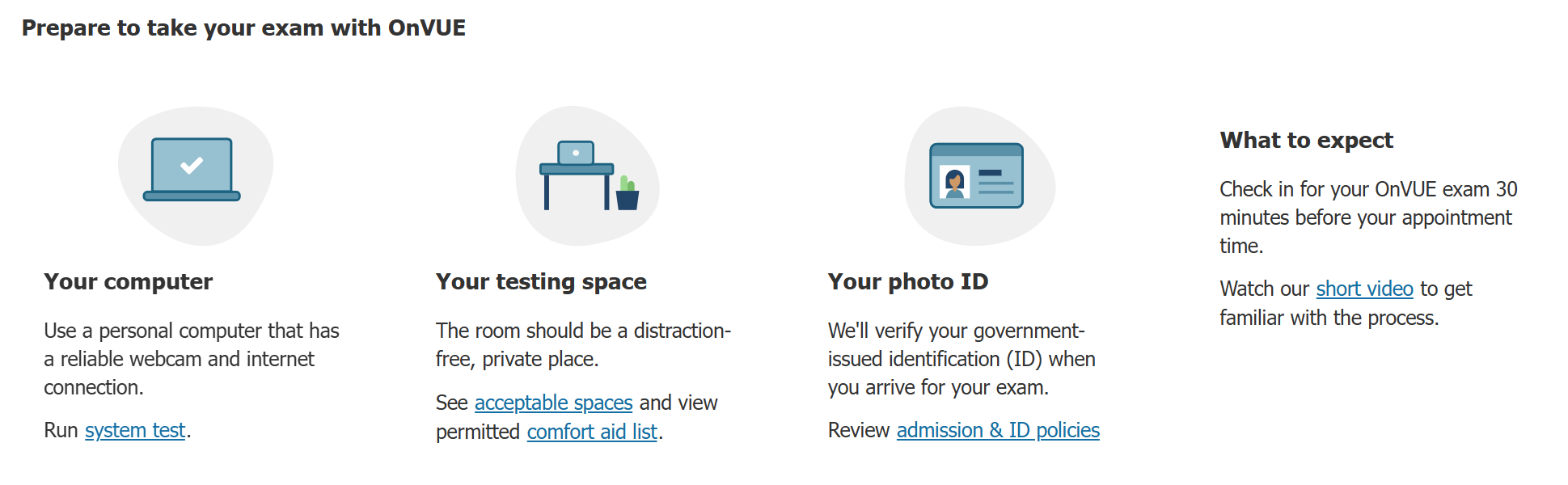
* Start the check-in process no later than 30 minutes before the exam starts. The app is a huge mess with technical issues, proctors wanting a full walkthrough of your room etc. If something breaks you will thank God for every minute you have so they don't cancel on you.
* [Helpful resources for test-takers // Pearson VUE](https://home.pearsonvue.com/Test-takers/Resources.aspx?ot=collapse15)
* [Tips on taking an OnVUE exam // Pearson VUE](https://home.pearsonvue.com/onvue-tips)
* [Pearson VUE Online Testing Guide](https://home.pearsonvue.com/Test-takers/onvue/guide)
I recommend going through all of the links above to assure you are compliant with all the rules and restrictions. The online exams can be pretty complex for first time takers.
:::
Now you need to choose a language. I personally recommend English as the translations are sometimes weird.
:::tip
If you are not a native English speaker, you can request more time here: [**English as a second language Accommodation**](https://learn.microsoft.com/credentials/certifications/available-exam-accommodations-document-requirements?WT.mc_id=studentamb_165290#english-as-a-second-language).
:::
After selecting a language you get to the policy and general information page.
:::tip
* Start the check-in process no later than 30 minutes before the exam starts. The app is a huge mess with technical issues, proctors wanting a full walkthrough of your room etc. If something breaks you will thank God for every minute you have so they don't cancel on you.
* [Helpful resources for test-takers // Pearson VUE](https://home.pearsonvue.com/Test-takers/Resources.aspx?ot=collapse15)
* [Tips on taking an OnVUE exam // Pearson VUE](https://home.pearsonvue.com/onvue-tips)
* [Pearson VUE Online Testing Guide](https://home.pearsonvue.com/Test-takers/onvue/guide)
I recommend going through all of the links above to assure you are compliant with all the rules and restrictions. The online exams can be pretty complex for first time takers.
:::
Now you need to choose a language. I personally recommend English as the translations are sometimes weird.
:::tip
If you are not a native English speaker, you can request more time here: [**English as a second language Accommodation**](https://learn.microsoft.com/credentials/certifications/available-exam-accommodations-document-requirements?WT.mc_id=studentamb_165290#english-as-a-second-language).
:::
After selecting a language you get to the policy and general information page.
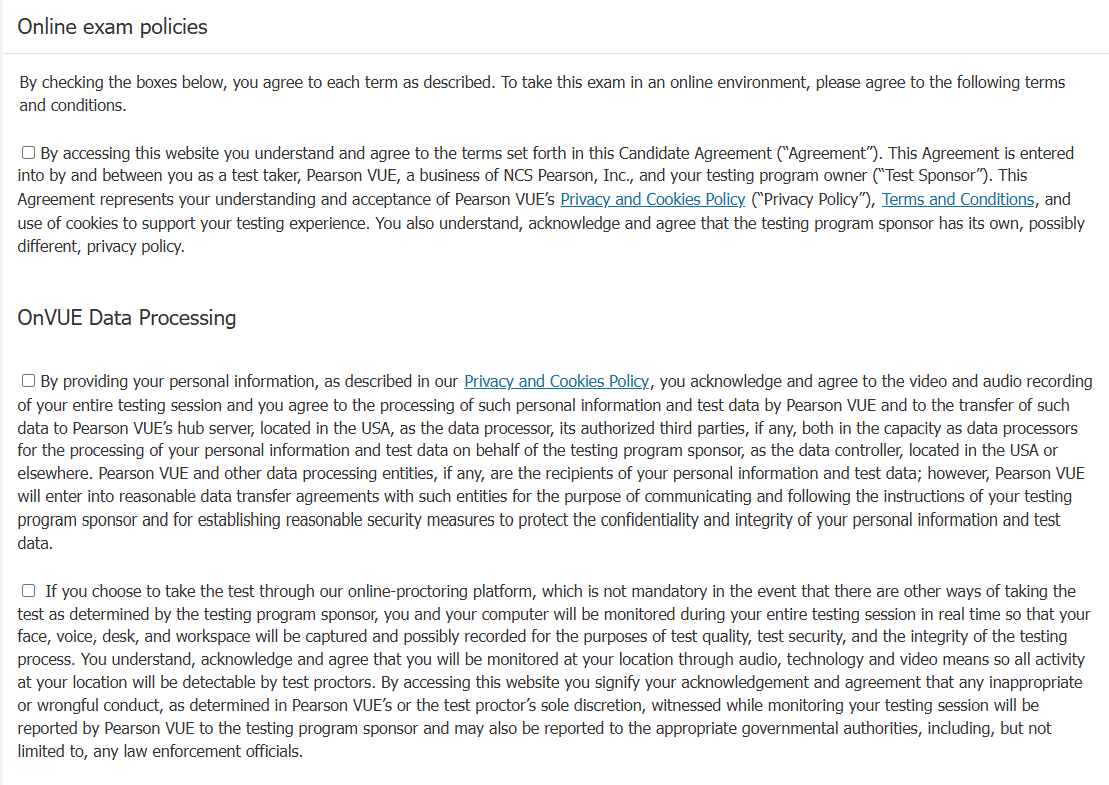
 After agreeing to everything, you need to pick the language of your proctor.
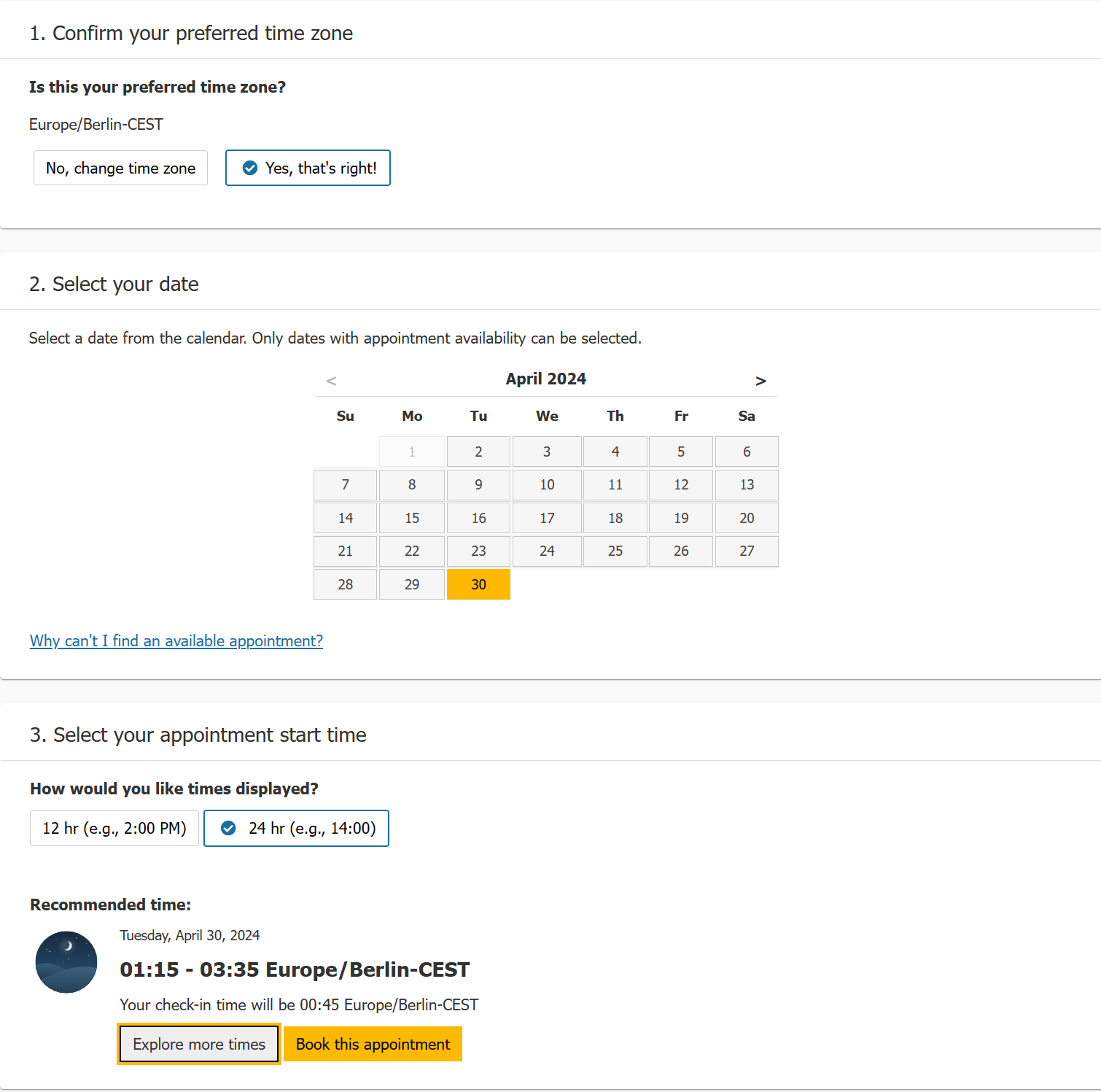
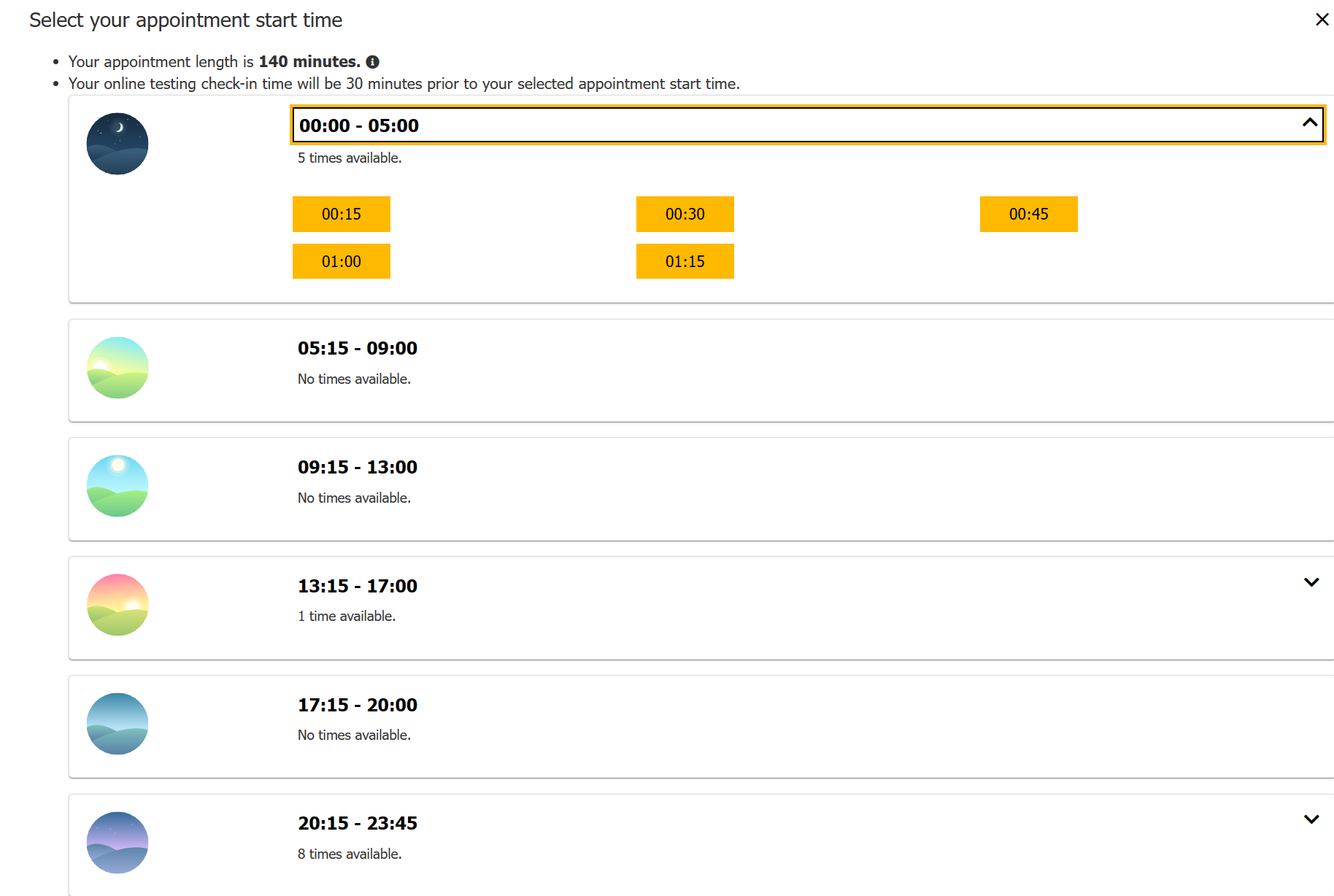
 After that you pick a timezone and time slot for your exam.
:::caution
Always double check your timezone is correct and that you didn't mistake PM and AM.
:::
:::tip
Online exam appointments are running 24/7.
:::
After that you pick a timezone and time slot for your exam.
:::caution
Always double check your timezone is correct and that you didn't mistake PM and AM.
:::
:::tip
Online exam appointments are running 24/7.
:::
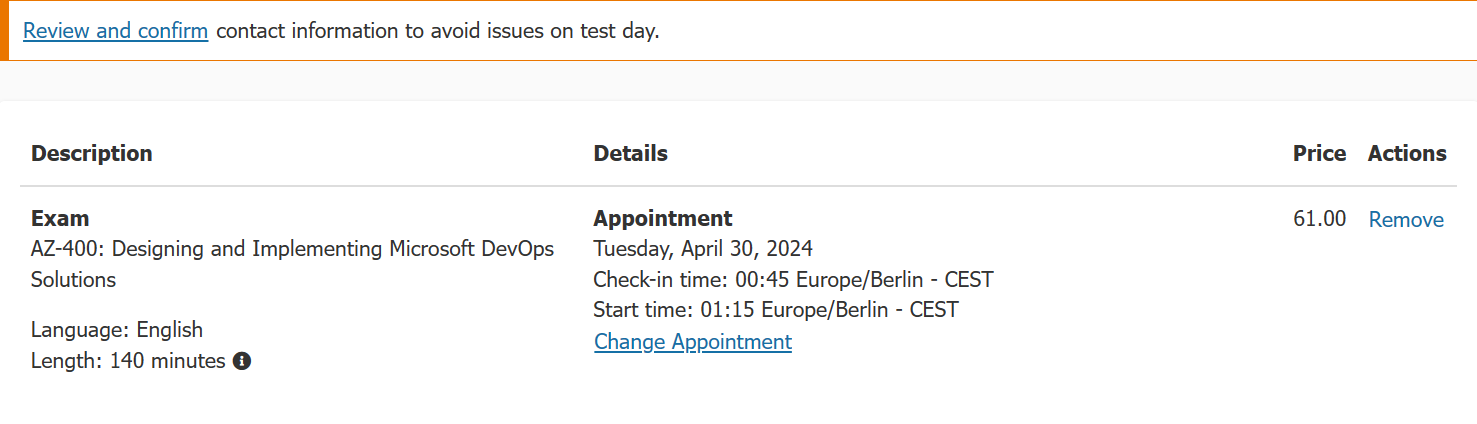
 After choosing when you will take the exam, you will get to the cart, there you verify all the information.
 :::caution
There is the option to purchase MeasureUp Practice Test there at a "discount".
While MeasureUp is the objectively the best (but most expensive) Microsoft practice test provider, they are constantly running 30-50% sales meaning that this offer is generally not worth it.
To check for current promotions, go to MeasureUp directly [MeasureUp Microsoft Practice Tests](https://www.measureup.com/microsoft.html#u44). If you plan to take multiple tests, it may be cheaper to get the subscription they offer [MeasureUp Subscription](https://www.measureup.com/subscription-plans-for-individuals#u44)
:::
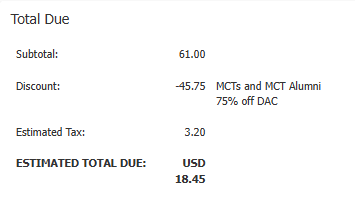
On this screen, you can also see the voucherless discount being applied automatically in case there is one linked with your Microsoft Learn account.
:::caution
There is the option to purchase MeasureUp Practice Test there at a "discount".
While MeasureUp is the objectively the best (but most expensive) Microsoft practice test provider, they are constantly running 30-50% sales meaning that this offer is generally not worth it.
To check for current promotions, go to MeasureUp directly [MeasureUp Microsoft Practice Tests](https://www.measureup.com/microsoft.html#u44). If you plan to take multiple tests, it may be cheaper to get the subscription they offer [MeasureUp Subscription](https://www.measureup.com/subscription-plans-for-individuals#u44)
:::
On this screen, you can also see the voucherless discount being applied automatically in case there is one linked with your Microsoft Learn account.
 ## Checkout and redeeming Voucher Codes
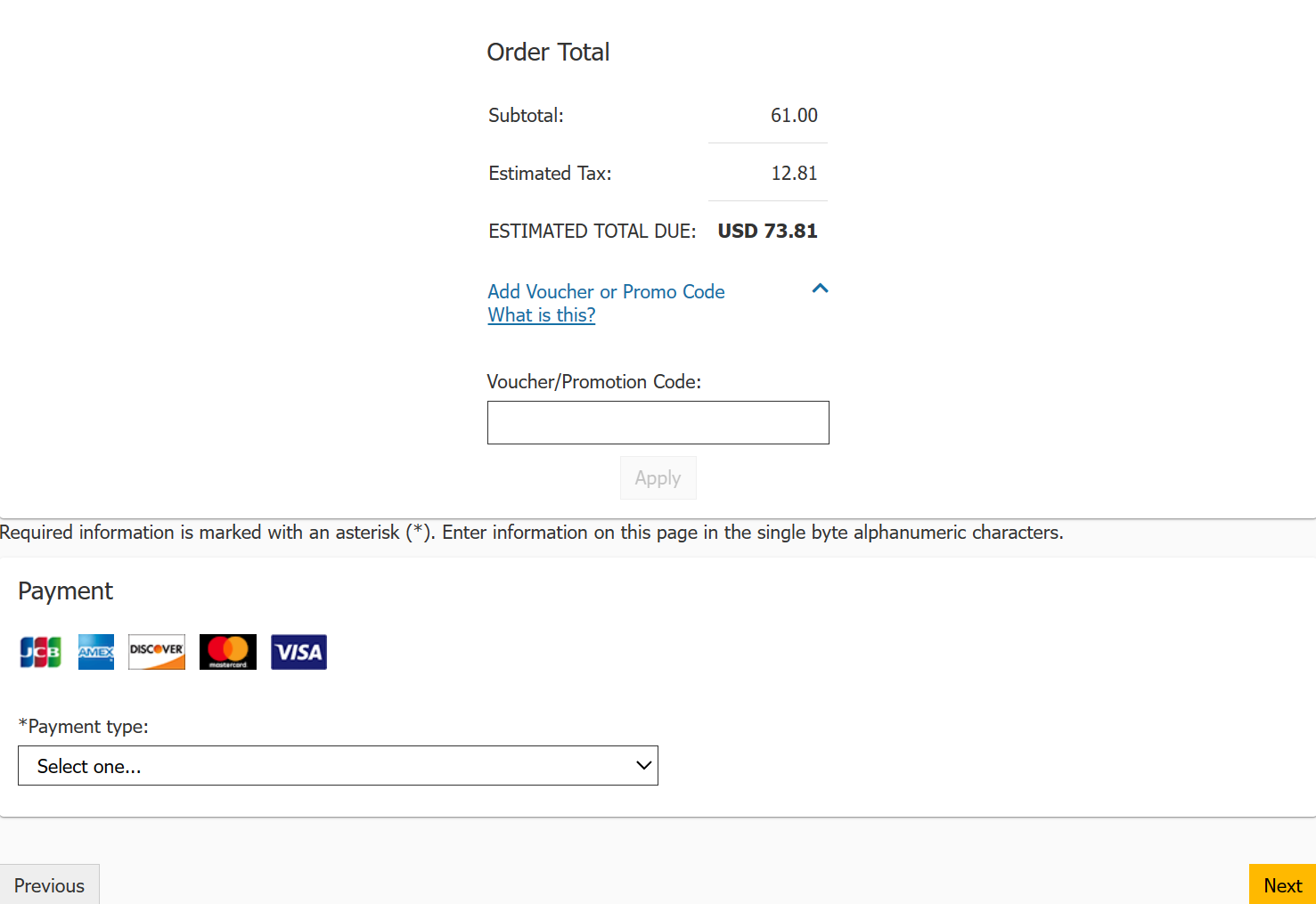
After **Proceeding to check out** here is the final page where after you enter payment information.
If you have a voucher code, you will input it under the estimated price, the button is **Add voucher or Promo Code**. If you have 100% off voucher, the payment option will disappear and you can order the exam immediately.
:::note
If there is a voucherless discount associated with your profile, you will need to first remove it before you can apply a voucher code.
:::
## Checkout and redeeming Voucher Codes
After **Proceeding to check out** here is the final page where after you enter payment information.
If you have a voucher code, you will input it under the estimated price, the button is **Add voucher or Promo Code**. If you have 100% off voucher, the payment option will disappear and you can order the exam immediately.
:::note
If there is a voucherless discount associated with your profile, you will need to first remove it before you can apply a voucher code.
:::
 After successfully ordering the exam, you should see the details of the appointment in the [Certification Dashboard](https://learn.microsoft.com/users/me/credentials?tab=credentials-tab\&WT.mc_id=studentamb_165290). If you don't, contact [Certification Support](https://aka.ms/certificationsupport) immediately.
***
### Sources
Redeem voucher codes | Microsoft Learn Answers
About online exams with Pearson VUE | Microsoft Learn
Helpful resources for test-takers | Pearson VUE
Tips on taking an OnVUE exam | Pearson VUE
Pearson VUE Online Testing Guide | Pearson VUE
After successfully ordering the exam, you should see the details of the appointment in the [Certification Dashboard](https://learn.microsoft.com/users/me/credentials?tab=credentials-tab\&WT.mc_id=studentamb_165290). If you don't, contact [Certification Support](https://aka.ms/certificationsupport) immediately.
***
### Sources
Redeem voucher codes | Microsoft Learn Answers
About online exams with Pearson VUE | Microsoft Learn
Helpful resources for test-takers | Pearson VUE
Tips on taking an OnVUE exam | Pearson VUE
Pearson VUE Online Testing Guide | Pearson VUE