---
title: Certification Dashboard
description: How to use the Microsoft Certification Dashboard to view scheduled exam appointments, manage earned certifications, check certification renewal windows, and access past exam history.
---
:::tip
You can find the Dashboard here: [Certification Dashboard](https://learn.microsoft.com/users/me/credentials?tab=credentials-tab\&WT.mc_id=studentamb_165290).
:::
## Upcoming Exam Appointment
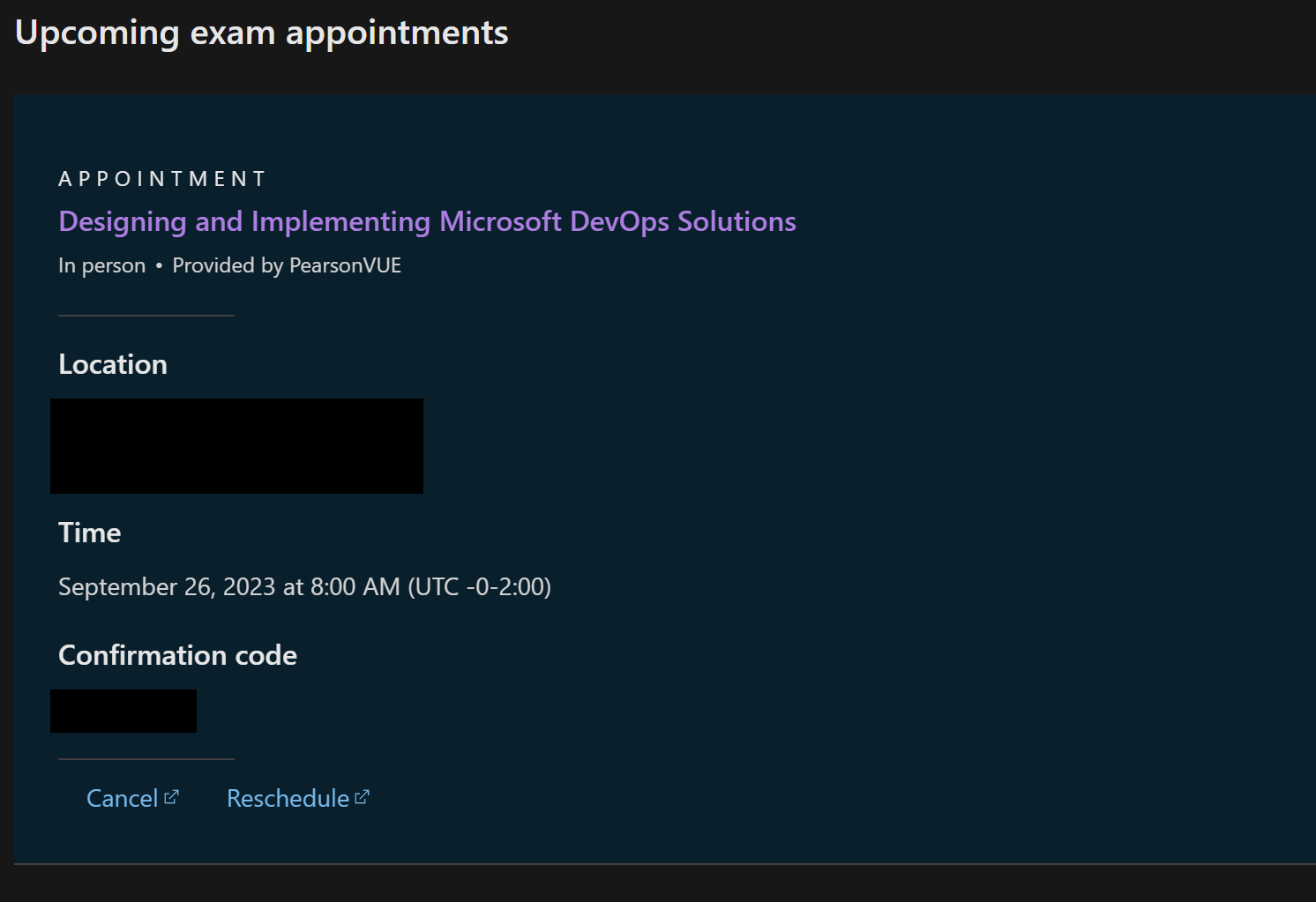
Here you can see all your scheduled appointments. Currently, you can only have 2 exams scheduled at the same time. You can directly access PearsonVUE portal from here by clicking the **Reschedule** button.
 ## Certifications
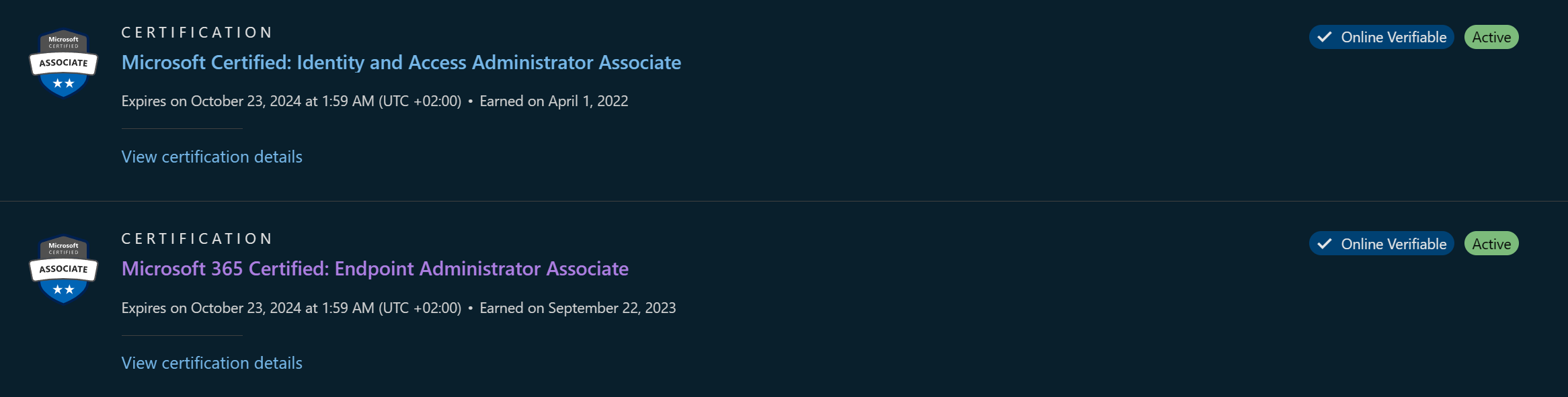 Here you can access all your certifications, share them around, download them, see when they expire and if you are in the renewal window.
## Past Exams
Here you can access all your certifications, share them around, download them, see when they expire and if you are in the renewal window.
## Past Exams
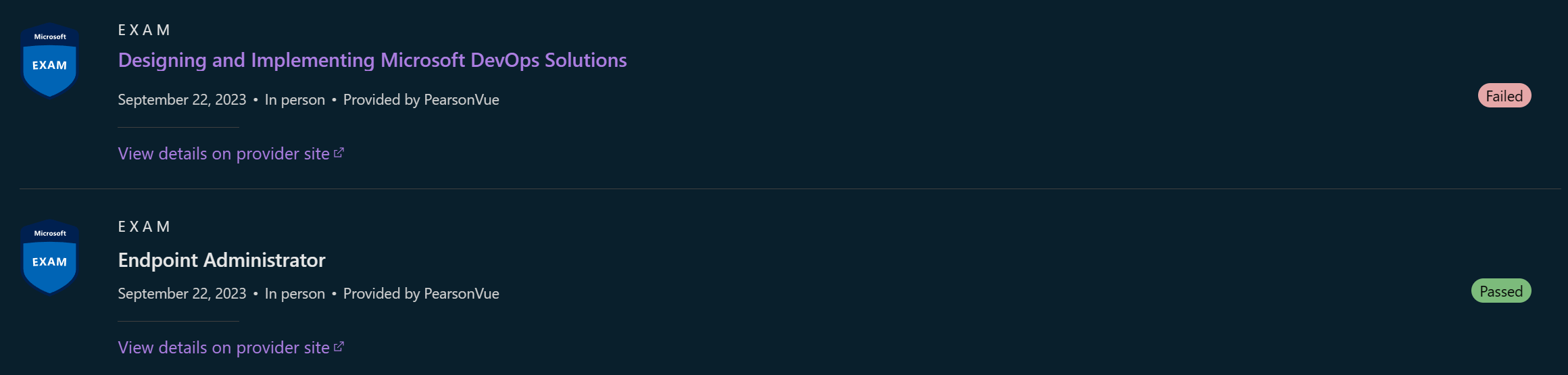 Similarly to the **Certifications** section, you can find all your exams here. One added bonus is that this is another place you can directly access PearsonVUE portal from by choosing the **View details on provider site**.
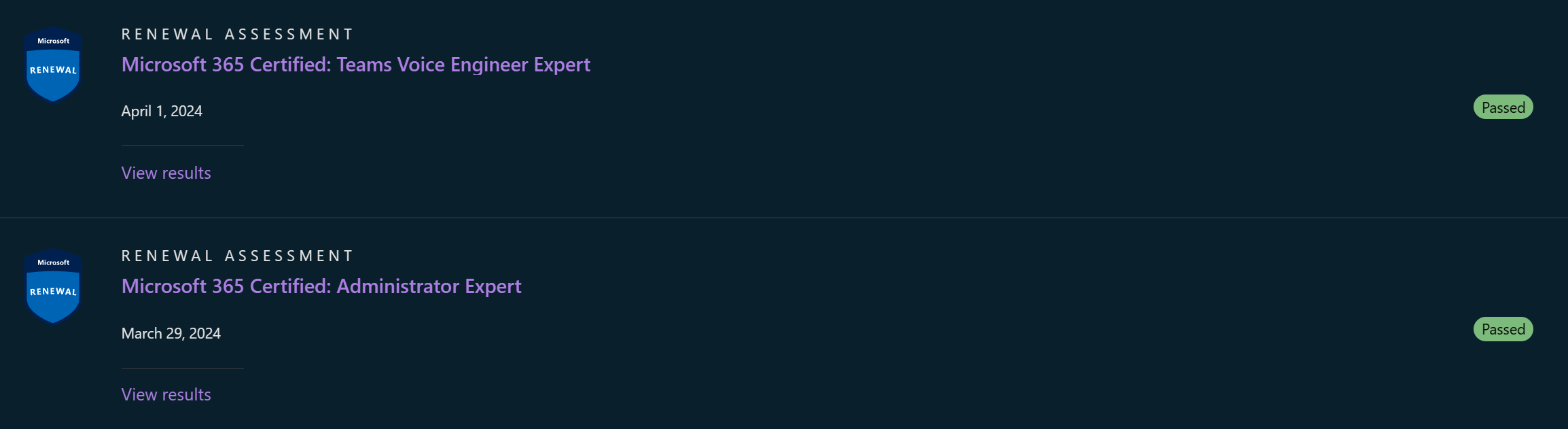 Here you can access all your renewal assessment attempts. So, if you fail you can check which areas you were weak in and study up on those more. For more on renewals, see the [Certification Renewal](/guide/certificationrenewal/) guide.
## Microsoft Credential Support
Here you can access all your renewal assessment attempts. So, if you fail you can check which areas you were weak in and study up on those more. For more on renewals, see the [Certification Renewal](/guide/certificationrenewal/) guide.
## Microsoft Credential Support
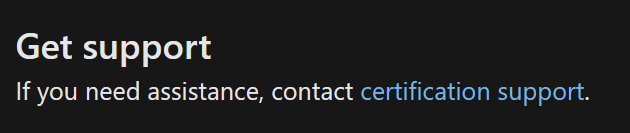 And lastly, you can see [Microsoft certification support](https://engagehub.microsoft.com/#view/Microsoft_AzureCXP_EngageHub/MsaLanding.ReactView/targetExperience/sfb/sapId/de16815f-2fa5-576e-4946-70cae21a4eeb) URL. This is really important since Microsoft certification support is the **only** place where you can solve certification and profile issues or try to get exams refunded/rescheduled after PearsonVUE messes your exam up and you lose the exam attempt.
Usually contacting PearsonVUE themselves is a huge waste of time. So, this is the best option.
## PearsonVUE Portal
Besides Certification Dashboard, you can also access PearsonVUE Portal using this URL [PearsonVUE Portal](https://learn.microsoft.com/credentials/certifications/schedule-through-pearson-vue?action=1\&WT.mc_id=studentamb_165290)
When you are in PearsonVUE portal, you can navigate to the main page by clicking the **PearsonVUE Home button.**
And lastly, you can see [Microsoft certification support](https://engagehub.microsoft.com/#view/Microsoft_AzureCXP_EngageHub/MsaLanding.ReactView/targetExperience/sfb/sapId/de16815f-2fa5-576e-4946-70cae21a4eeb) URL. This is really important since Microsoft certification support is the **only** place where you can solve certification and profile issues or try to get exams refunded/rescheduled after PearsonVUE messes your exam up and you lose the exam attempt.
Usually contacting PearsonVUE themselves is a huge waste of time. So, this is the best option.
## PearsonVUE Portal
Besides Certification Dashboard, you can also access PearsonVUE Portal using this URL [PearsonVUE Portal](https://learn.microsoft.com/credentials/certifications/schedule-through-pearson-vue?action=1\&WT.mc_id=studentamb_165290)
When you are in PearsonVUE portal, you can navigate to the main page by clicking the **PearsonVUE Home button.**
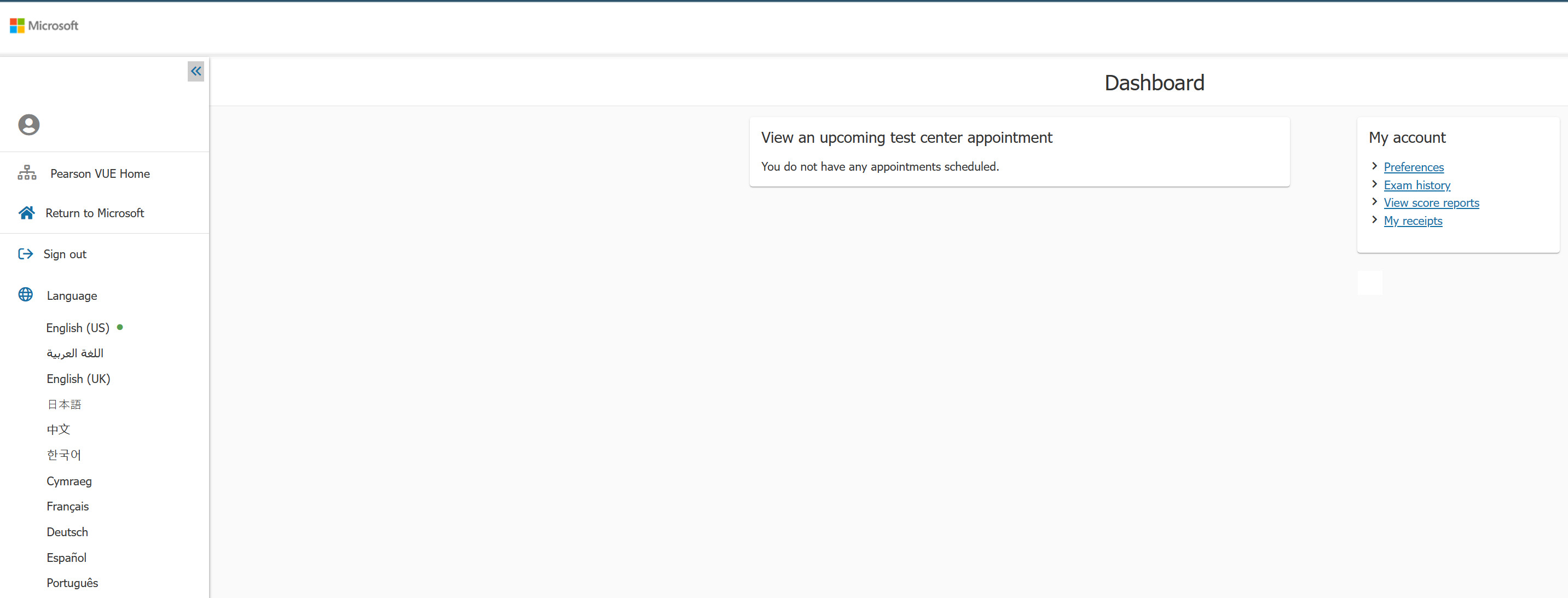 The most important thing here, besides being able to see all upcoming exams and reschedule them, you can access your past exam score reports. The option is located under **My account** > **View score reports** on the right side of the page.
***
### Sources
View and Share badges | Microsoft Learn
The most important thing here, besides being able to see all upcoming exams and reschedule them, you can access your past exam score reports. The option is located under **My account** > **View score reports** on the right side of the page.
***
### Sources
View and Share badges | Microsoft Learn